1. Introduction
In this tutorial, I’ll walk you through the correct, repeatable, and secure way to deploy compute instances in Oracle Cloud Infrastructure. Whether you're building your first Always Free VM or deploying production Linux servers, getting the fundamentals right saves you hours of troubleshooting later.
Compute instances are the backbone of your workloads—web servers, application services, database clients, automation nodes, and more. A wrong setup creates security gaps, performance issues, or unnecessary exposure to the public internet.
2. What Problem This Solves
Most failures in compute deployments come from:
-
Exposing servers publicly when they should be private
-
Incorrect SSH key management
-
Not configuring ephemeral boot volumes properly
-
Placing servers in the wrong subnet
-
No route to NAT → no outbound traffic
-
Default OS images left unpatched
This guide solves those issues by walking you through the exact steps I use for production deployments in OCI.
3. Step-by-Step Guide
Step 1 — Choose the Right Shape
For Always Free:
-
VM.Standard.E2.1.Micro (AMD) — stable, general purpose
-
VM.Standard.A1.Flex — ARM-based, very powerful for free tier
For production workloads:
-
Flexible shapes with reserved OCPUs
-
Ensure burstable vs non-burstable differences are understood
Step 2 — Create Instance
OCI Console → Compute → Instances → Create Instance
Recommended settings:
-
OS: Oracle Linux 9 or Ubuntu 24.04 LTS
-
Network: private subnet for everything except public-facing services
-
Boot volume size: minimum 50 GB for production/Linux package installs
Step 3 — Generate SSH Keys (Local Machine)
On Linux/macOS:
On Windows (PowerShell):
Upload public key only (.pub) to OCI.
Step 4 — Secure Your Server Immediately
Update OS
or
Disable password authentication in SSH
Edit:
Set:
Reload:
Step 5 — Optional: Add Cloud-Init Configuration
Add startup automation when creating compute:
Step 6 — Create Backup Policy
From Compute → Boot Volume → Assign Backup Policy
Use:
-
Silver for general workloads
-
Gold for production critical workloads
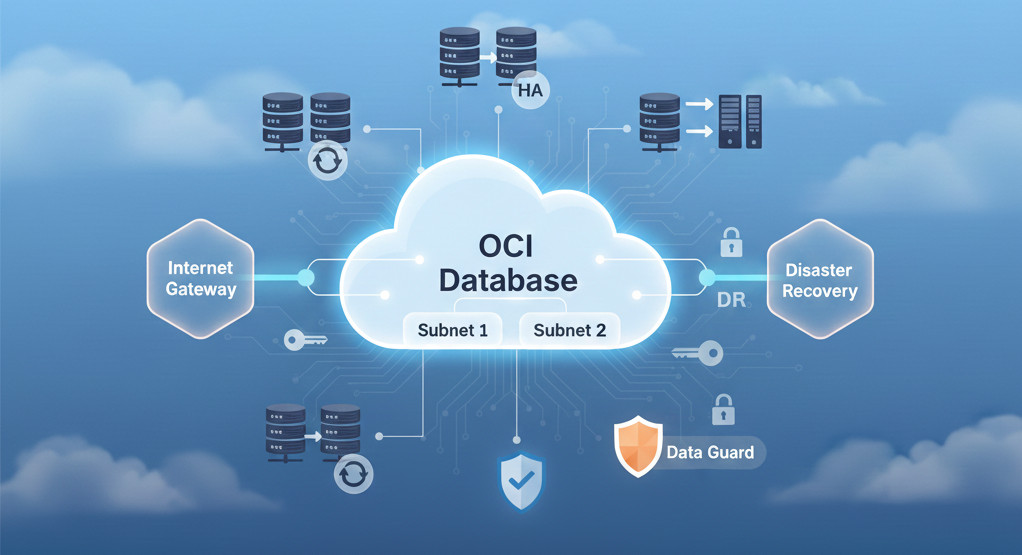
4. Architecture Diagram
5. Best Practices
-
Use private IPs for all internal servers
-
Only assign public IPs to load balancers or jump hosts
-
Rotate SSH keys every 90 days
-
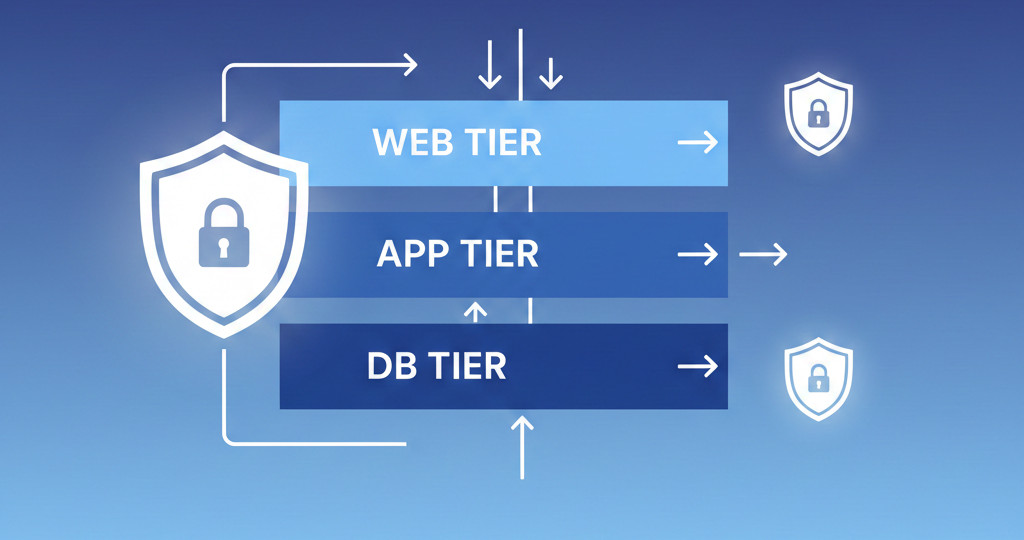
Assign NSGs (Network Security Groups) per-tier rather than global security lists
-
Scale using flexible shapes—start small, grow OCPU only when needed
-
Always enable monitoring and alarms for CPU, memory, disk usage
6. Common Errors / Troubleshooting
| Error | Cause | Fix |
|---|---|---|
| Can't SSH | Wrong subnet or no public IP | Move instance or assign floating IP |
| No outbound internet | Missing NAT route | Update route table |
| Yum/DNF cannot install packages | Blocked outbound ports | Enable port 443 via NAT |
| Server slow | Using burstable shape | Increase OCPU baseline |
| SSH refused | Password login disabled before key added | Add authorized keys via serial console |
7. Summary
You now have the blueprint for secure, maintainable, scalable compute deployments in OCI. These practices work whether you're setting up Always Free instances or building large enterprise clusters.
👉 Download your free guide:
7 OCI Networking Mistakes to Avoid
https://dmcloudarchitect.com/c/7_oci_mistakes_to_avoid.html