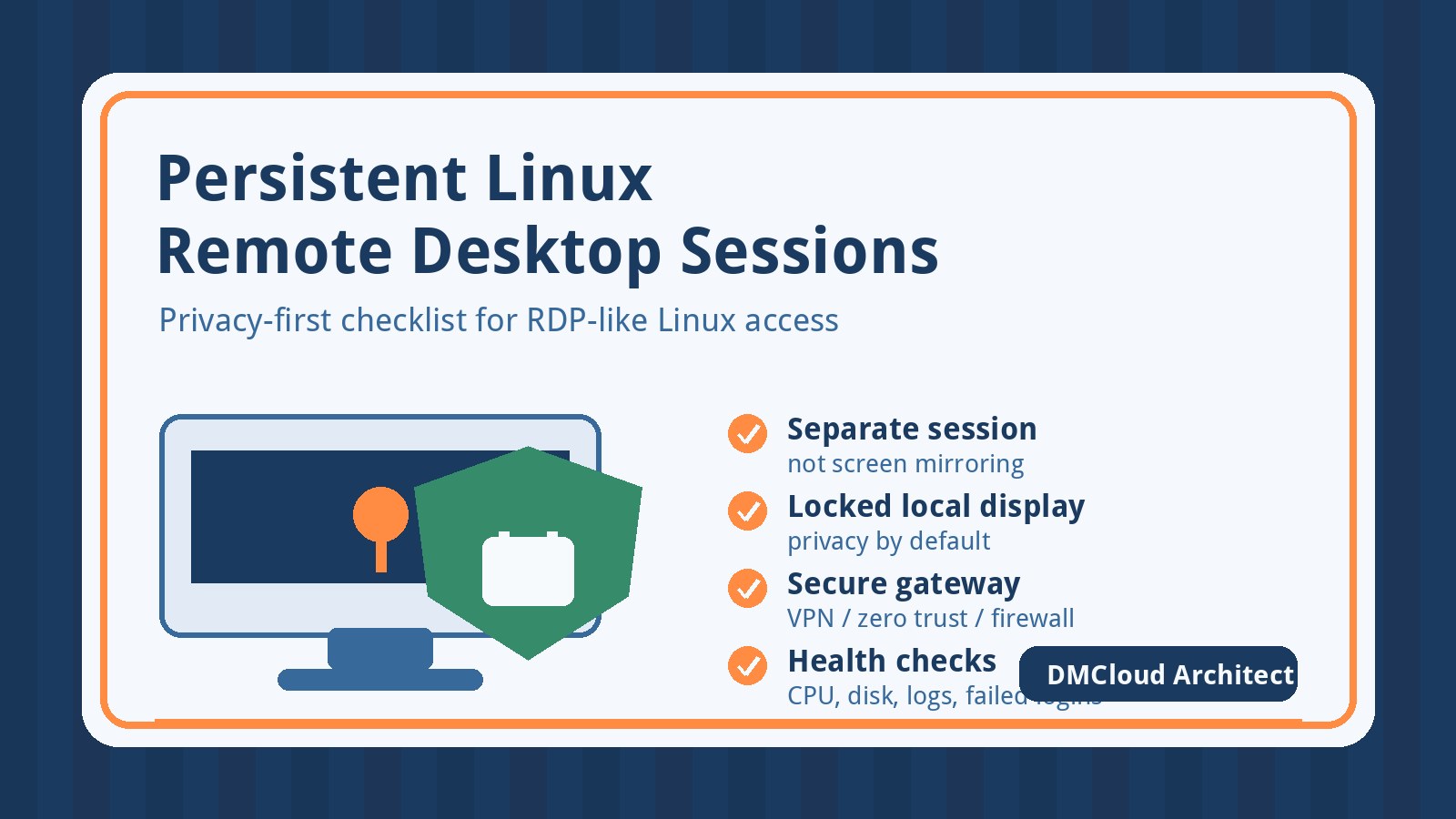
Windows RDP sets a high expectation for remote work: you can leave applications open, disconnect, reconnect later, and keep the physical screen locked while the remote session continues. When a team moves a workstation or admin desktop to Linux, the same goal is possible, but it needs a more deliberate design than installing the first screen-sharing tool that appears in a search result.
The key distinction is persistent remote access versus screen mirroring. Screen mirroring tools show or control the console session that someone could see at the desk. A persistent Linux remote desktop design should protect the local display, survive disconnects, and include basic linux server monitoring so the workstation, jump host, and remote access services do not become a quiet single point of failure.
1. Define what “RDP-like” means for your team
Before choosing a tool, write down the behavior you expect. For most small businesses and technical teams, an RDP-like Linux desktop means:
- The remote GUI session stays alive after the user disconnects.
- Open applications, terminals, documents, and browser sessions remain available when the user reconnects.
- The physical monitor at the office stays locked, blank, or unrelated to the remote session.
- Access is authenticated, logged, and protected by VPN, firewall rules, or a secure gateway.
- The machine can still be maintained, patched, backed up, and monitored like other infrastructure.
That last point matters. A remote workstation used for daily operations is no longer “just a desktop.” It has become part of your production workflow.
2. Avoid plain screen mirroring for privacy-sensitive work
Traditional VNC, many support tools, and basic desktop-sharing apps attach to the physical console. They can be useful for helpdesk support, but they are the wrong default when privacy is the main requirement. If the local screen can reveal the remote user’s work, or if turning off the monitor breaks the remote view, the setup does not meet the RDP-like requirement.
For privacy-sensitive workflows, treat console mirroring as an exception. It should be used for temporary troubleshooting, with explicit permission, not as the normal remote work path.
3. Consider XRDP when you want a familiar RDP client experience
XRDP is often the first option to evaluate because it lets users connect with standard Remote Desktop clients from Windows, macOS, and mobile devices. Depending on the Linux distribution and desktop environment, XRDP can create a separate remote session rather than exposing the physical console.
That makes it attractive for users coming from Windows RDP, but test it carefully before rolling it out. Confirm that reconnecting returns the user to the same session, audio and clipboard behavior match your policy, local drive redirection is disabled if sensitive, and the office display remains locked or independent. Lightweight desktop environments are often more reliable for XRDP than graphics-heavy ones.
4. Use a virtual desktop pattern when persistence matters most
Some teams get the most predictable result by running the persistent GUI session as a virtual display. That might use a VNC server attached to a virtual X session, a remote desktop broker, or another Linux remote desktop stack. The important point is that the remote user is not controlling the physical monitor.
This pattern can feel less “native” than Windows RDP, but it is often operationally clean. The local display can remain locked. The remote desktop can restart independently. And the team can standardize a known session size, desktop environment, and access path. If users only need browsers, terminals, database tools, and admin consoles, a virtual desktop can be a very practical solution.
5. Keep SSH-first workflows for servers and GUI only where it adds value
For Linux servers, SSH with tmux or screen is still the safest default for persistent administrative work. It is lightweight, easy to log, and resilient over unstable networks. Use a full GUI session when the task genuinely needs one: desktop applications, browser-based admin flows, visual tools, or migration comfort for users coming from Windows.
A good policy is simple: server operations stay SSH-first, while persistent GUI access is reserved for workstations, jump desktops, or approved admin environments. This keeps remote access easier to secure and easier to monitor.
6. Put secure access controls in front of the remote desktop
Do not expose RDP, VNC, or desktop broker ports directly to the internet. Put the service behind a VPN, zero-trust access gateway, bastion host, or narrowly scoped firewall rule. Require strong authentication and disable convenience features that do not match your risk profile.
Your security checklist should include:
- Multi-factor authentication for the access path whenever possible.
- Firewall rules that limit who can reach the remote desktop service.
- Separate accounts for daily use and administrative changes.
- Account lockout or rate limiting for failed login attempts.
- Session timeout and lock behavior that matches company policy.
- Clear rules for clipboard, printer, and local drive redirection.
The goal is not to make remote work painful. The goal is to prevent one convenient desktop service from becoming the easiest way into the business.
7. Monitor the workstation like infrastructure
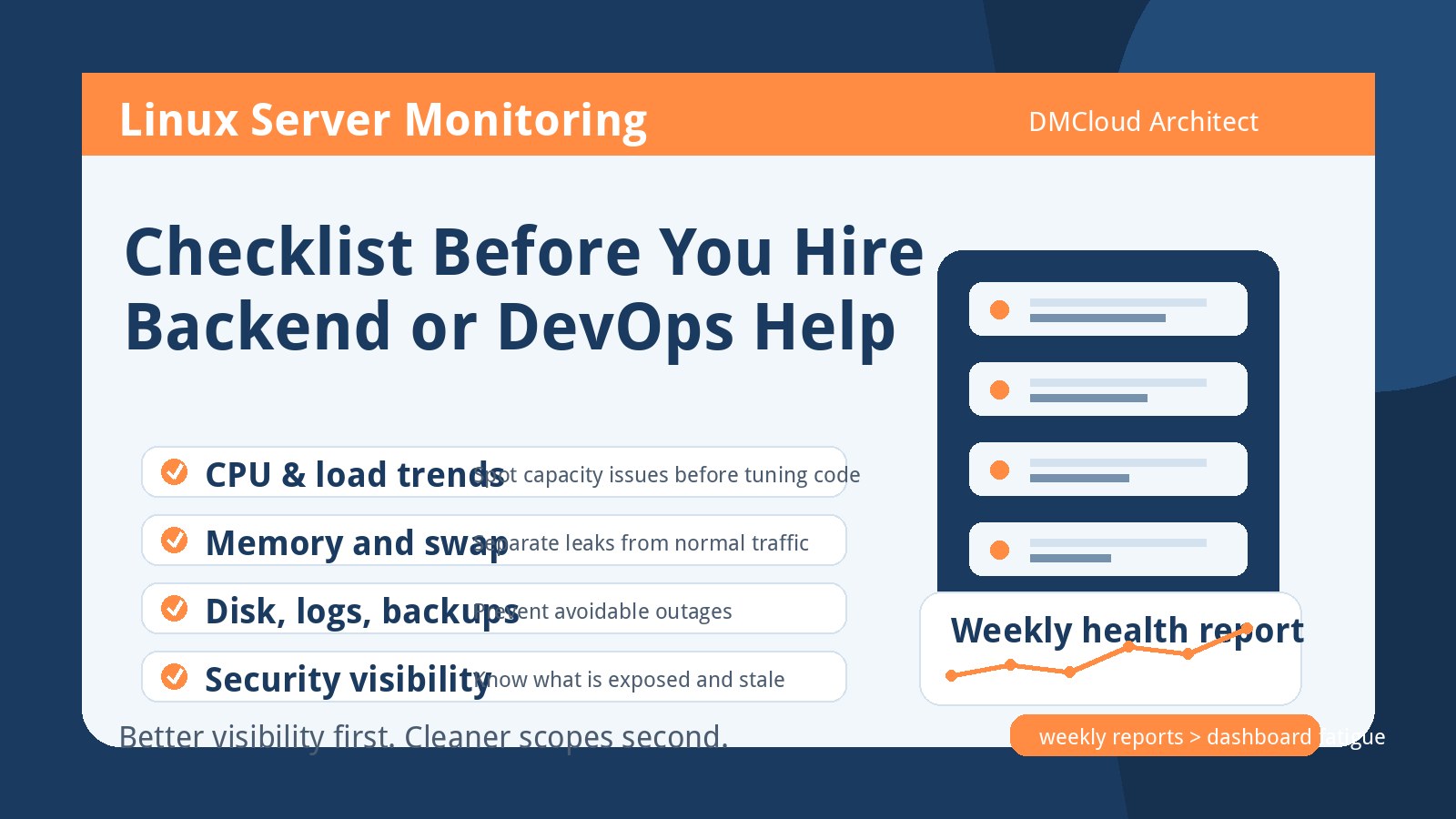
Once people depend on a Linux desktop remotely, basic health checks become important. If the machine runs out of disk space, loses network stability, fills logs, or has a stuck desktop service, work stops. That is why a small amount of linux server monitoring belongs in the remote desktop plan.
Track the basics:
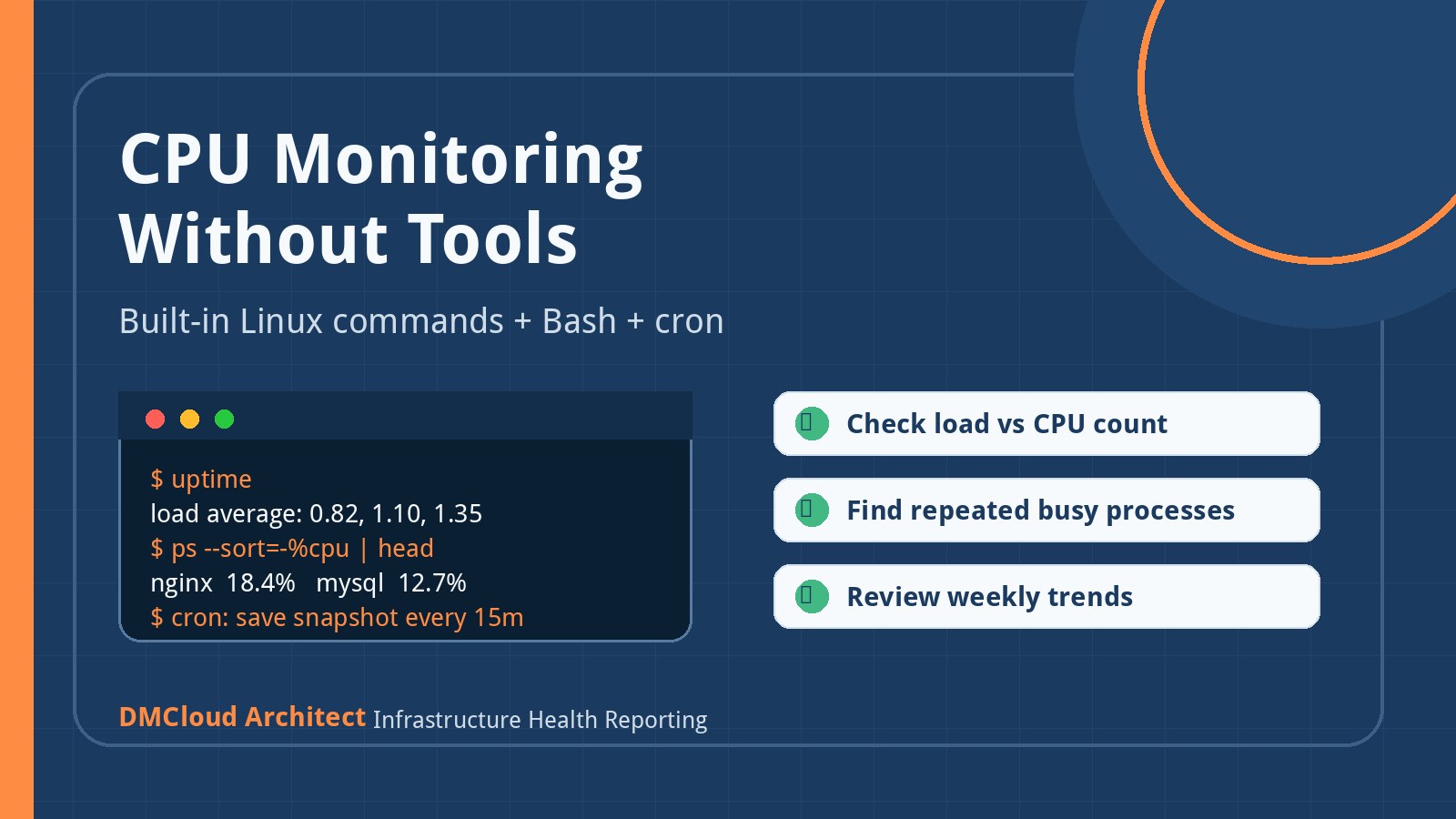
- CPU load and memory pressure during remote sessions.
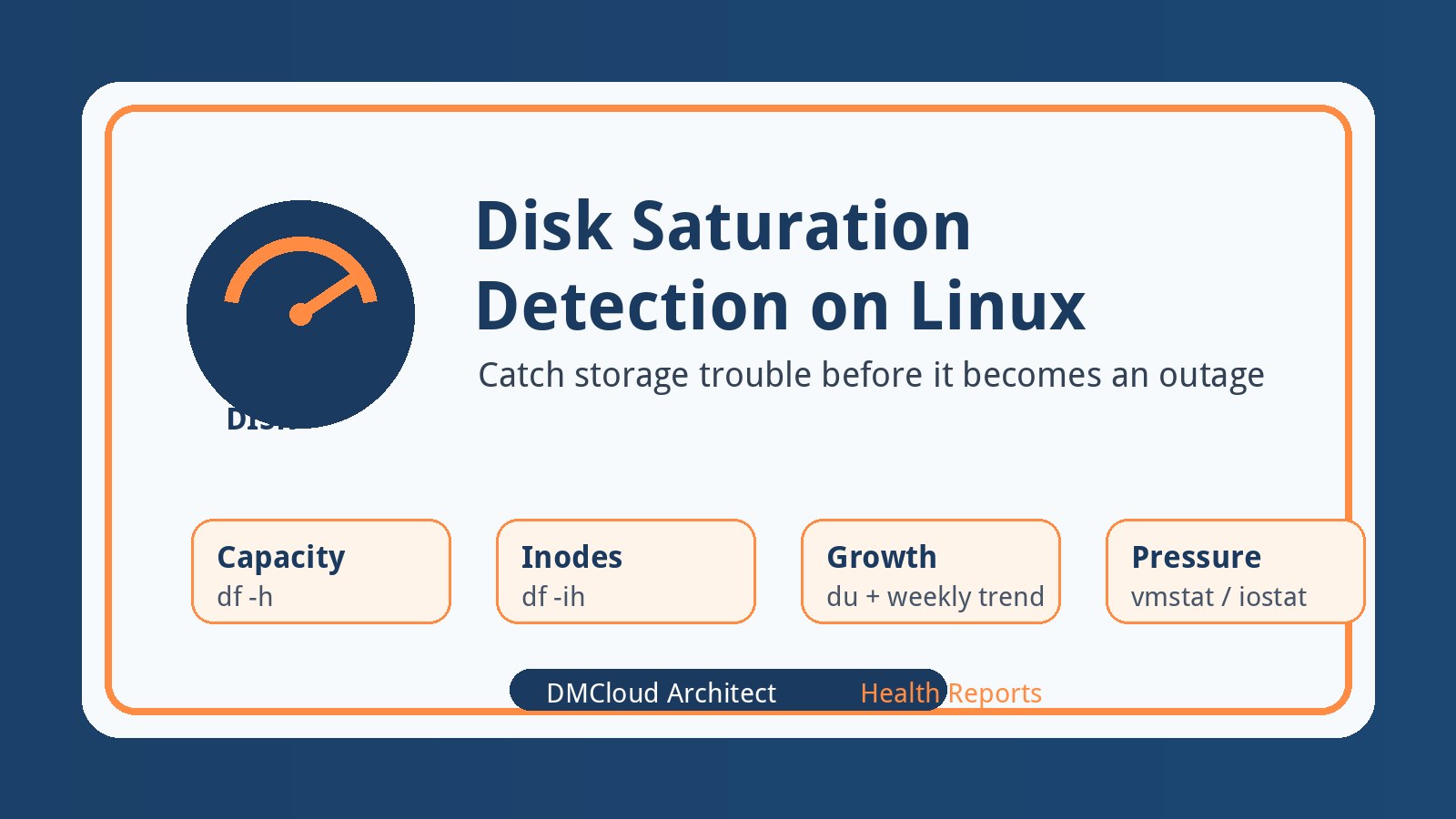
- Disk space, inode usage, and log growth.
- Remote desktop service status and restart history.
- VPN or gateway availability.
- Failed login attempts and unusual source IPs.
- Patch status and pending reboot requirements.
- Backup coverage for important user data and configuration files.
Weekly visibility is often enough for small teams. You do not need a giant operations center to notice that disk usage is climbing, a service is failing every night, or login failures are increasing.
8. Test disconnect, reconnect, reboot, and local-login behavior
The most common mistake is testing only the first successful connection. A production-ready remote desktop setup needs a fuller acceptance test:
- Open several real applications, disconnect, then reconnect from another network.
- Confirm the local monitor stays locked or blank while the remote session continues.
- Restart the remote desktop service and document what happens to the session.
- Reboot the workstation and confirm users know what is preserved and what is not.
- Log in physically at the office after a remote session and confirm the experience is predictable.
- Review logs for authentication events, errors, and service warnings.
This test turns a promising lab setup into something the business can trust.
9. Document the recovery path before users depend on it
Every remote access design needs a fallback. If the desktop session hangs, who can restart it? If the VPN fails, what is the backup access route? If a user leaves a sensitive session open, how is it locked or terminated? If the workstation is offline, who receives the alert?
Small teams do not need a 40-page runbook, but they do need a one-page recovery plan with owner names, commands, service names, and escalation steps. That document is especially valuable when the person who built the setup is not the person who gets the call at 7:00 AM.
Recommended checklist
- Choose a non-mirroring remote desktop pattern for privacy-sensitive work.
- Test XRDP or a virtual desktop approach against real reconnect requirements.
- Keep server administration SSH-first unless a GUI is genuinely needed.
- Place remote desktop access behind VPN, zero-trust access, or strict firewall controls.
- Disable risky redirection features unless the business needs them.
- Monitor service status, disk, CPU, memory, logs, failed logins, and patch status.
- Write a short recovery plan for hung sessions, failed services, and offline workstations.
Bottom line
Linux can support persistent, RDP-like remote desktop workflows, but the best setup depends on whether you need a separate session, a virtual desktop, or a physical workstation experience. For small businesses, the winning design is usually the one that keeps the local screen private, puts secure access controls in front, and treats the remote desktop host as monitored infrastructure rather than an unmanaged convenience.
Want weekly checks on the systems your team depends on?
DMCloud Architect helps small teams spot Linux, MySQL, security, and availability risks before they interrupt work.
Get the free starter plan for weekly infrastructure health reports.