A Linux server can report high CPU utilization and still feel responsive. It can also show a moderate average while requests slow down because runnable tasks are competing for too little processor time. Effective CPU pressure detection on Linux therefore asks a better question than “how busy is the CPU?” It asks whether useful work is waiting, where the delay occurs, and whether the pattern is getting worse.
This guide gives developers and small business operators a practical way to detect CPU issues early. It combines Linux Pressure Stall Information (PSI), run-queue measurements, per-CPU activity, process evidence, and historical context so a short spike does not trigger panic and slow degradation does not remain invisible.
CPU utilization and CPU pressure are not the same
Utilization measures time the processors spend doing work. Pressure describes how much work cannot proceed immediately because CPU capacity is unavailable. A batch job can use every core for ten seconds without harming users, while a latency-sensitive service can suffer when a few important threads repeatedly wait behind other work.
That difference matters when diagnosing a CPU performance decline on a server. A utilization percentage alone does not reveal queueing, uneven core use, virtual-machine steal time, cgroup throttling, or whether the busy process is expected. Treat utilization as one clue, then look for evidence that demand is delaying real workloads.
Start with Linux Pressure Stall Information
Modern Linux kernels expose CPU pressure through /proc/pressure/cpu. Read it with:
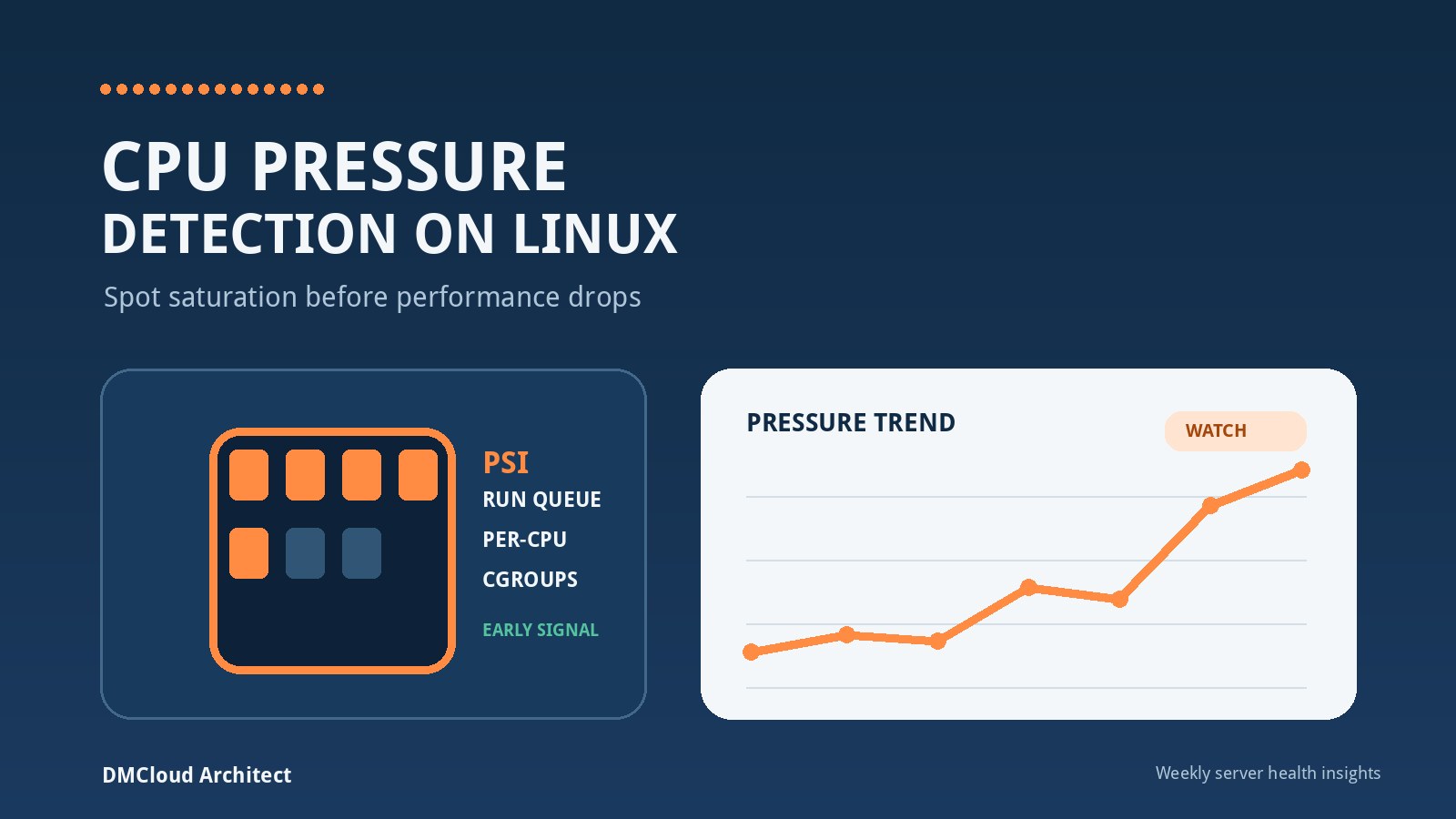
cat /proc/pressure/cpuThe output normally includes some averages over 10, 60, and 300 seconds plus a cumulative total. CPU pressure uses the some line because one or more runnable tasks may be stalled while another task is using a processor. Unlike raw utilization, this directly indicates time when work wanted CPU access but could not get it immediately.
A non-zero value is not automatically a fault. Short build jobs, package updates, report generation, compression, and backups can create temporary pressure. The useful signal is sustained or recurring pressure during periods when application latency, job duration, or queue depth also worsens. Record PSI over time rather than interpreting one sample in isolation.
Compare demand with available processors
Use nproc to confirm how many processors the workload can use, then compare that capacity with load and run-queue evidence:
nproc
uptime
vmstat 1 10
Load average counts tasks that are runnable or waiting in uninterruptible sleep, so it is broader than CPU activity. A load of four has different meaning on a two-CPU virtual machine and a sixteen-CPU host. In vmstat, the r column shows runnable tasks; repeated values above the available CPU count suggest work is queueing, especially when CPU idle time is low.
Also review the b column and I/O wait. High load with blocked tasks or elevated I/O wait may point to storage or network filesystem delays rather than a pure CPU bottleneck. CPU pressure detection works best when it rules out the wrong cause as well as identifying the right one.
Inspect per-CPU activity and steal time
If the sysstat package is available, sample each logical CPU:
mpstat -P ALL 1 10Per-CPU output can reveal one saturated core hidden inside an acceptable host-wide average. This happens with single-threaded applications, interrupt concentration, CPU affinity, and workloads pinned by a service or container configuration. A machine averaging 40% utilization can still have a critical thread waiting behind work on one fully occupied core.
On virtual machines, pay attention to %steal. Steal time indicates periods when the guest was ready to run but the hypervisor scheduled something else. Persistent steal time can resemble an application CPU problem even though the corrective action may involve the instance shape, host contention, or cloud capacity rather than code optimization.
Find the process creating demand
Once system-level evidence suggests saturation, identify which work is involved. A quick snapshot can help:
ps -eo pid,ppid,comm,%cpu,%mem,stat --sort=-%cpu | head -20
top
For a more useful time series, use pidstat when available:
pidstat -u -w 1 10Look for consistently busy processes, high context-switch activity, and changes that align with the pressure window. Confirm whether the process is serving customer traffic, performing planned maintenance, retrying failed work, or stuck in an inefficient loop. A process name and percentage are not a diagnosis; connect the activity to application logs, deployment times, queue depth, and response latency.
Check cgroup and container CPU limits
A container can experience CPU throttling while the host still has idle capacity. On cgroup v2 systems, inspect the workload's cpu.max and cpu.stat files. Increasing values for throttled periods or throttled time show that the configured quota is constraining the workload.
This distinction prevents wasted host-level tuning. If a service is limited to a fraction of one CPU, adding idle cores to the host will not help until the quota or deployment configuration changes. Conversely, removing every limit can let one noisy workload degrade its neighbors. Review quotas against measured demand and the service's latency target.
Separate short spikes from performance degradation
One sample rarely justifies a capacity change. Collect enough context to answer four questions:
- Duration: Did pressure last seconds, minutes, or most of the review period?
- Frequency: Was it a one-off deployment event or a pattern repeated every day?
- Impact: Did response time, queue age, job duration, or error rate worsen at the same time?
- Change: Did traffic, code, scheduled work, CPU quota, or infrastructure configuration recently change?
These questions turn a CPU saturation warning into operational evidence. A ten-second spike during a known deployment may need no action. Rising five-minute PSI averages during normal traffic, accompanied by slower requests and a growing run queue, deserves investigation even if the server has not reached a simple utilization threshold.
Build a lightweight collection routine
A small team does not need a large monitoring platform to establish a baseline. A scheduled script can save a timestamp, processor count, load average, CPU PSI, a short vmstat or mpstat sample, and the busiest processes. Keep collection read-only, limit output, and store enough history to compare normal and abnormal periods.
A simple review can calculate or summarize:
- CPU PSI averages and change from the previous week;
- peak and typical run-queue depth relative to available CPUs;
- user, system, idle, I/O wait, and steal time;
- the processes most often associated with pressure;
- container throttling changes;
- application latency or job-duration impact during the same window.
Store the command versions and host identity with the sample. Virtual CPU count, kernel updates, instance resizing, and container quota changes can otherwise make trend comparisons misleading.
Use warning levels based on evidence
A practical CPU warning should require more than one metric. For example, mark the system as watch when CPU pressure is recurring and the run queue is growing, then mark it as action needed when that evidence is sustained and a business workload is measurably slower. Tune the durations and levels to the server's normal behavior rather than copying a universal percentage.
A concise report might say: “CPU watch: five-minute CPU PSI has increased for three weekly runs; runnable tasks exceeded available CPUs during the morning import, and import duration rose from 11 to 19 minutes. Review the import query and its two overlapping scheduled jobs before adding capacity.” This is more actionable than “CPU was high.”
Investigate in a safe order
- Confirm the pressure window and user-visible or job-level impact.
- Compare runnable demand with the CPU count available to the workload.
- Check I/O wait and blocked tasks so storage delay is not mistaken for CPU saturation.
- Review per-CPU imbalance, virtualization steal time, and cgroup throttling.
- Identify the processes, threads, requests, or jobs active during the event.
- Check recent deployments, traffic changes, retries, and overlapping schedules.
- Optimize or reschedule unnecessary work before scaling blindly.
- After any change, compare the same measurements to confirm the pressure and impact improved.
Avoid changing kernel settings, process priorities, CPU affinity, or container limits merely to make one metric look better. Each change can shift contention elsewhere. Preserve before-and-after evidence and keep a rollback path for production systems.
Know when CPU is not the bottleneck
Low CPU PSI, a short run queue, and substantial idle time are strong reasons to investigate elsewhere. Memory reclaim, storage latency, lock contention, database waits, network delay, DNS failures, and external APIs can all make an application feel slow without creating meaningful CPU pressure.
Likewise, a busy CPU is not automatically the problem if throughput is healthy and work is completing within its target. The objective is not to keep processors idle. It is to detect when contention delays important work and to address the cause before the delay becomes an outage or recurring customer complaint.
Turn CPU checks into an early-warning habit
Reliable CPU pressure detection on Linux combines direct stall evidence with capacity, queue, process, container, and application context. Repeating the same checks creates a baseline, exposes gradual CPU performance degradation, and gives a small team time to optimize code, separate schedules, adjust limits, or scale deliberately.
DMCloud Architect turns recurring Linux and MySQL checks into concise weekly health reports for developers and small business owners. See how Infrastructure Health Reporting can help you spot CPU, capacity, service, and maintenance risks without adding another dashboard to watch.