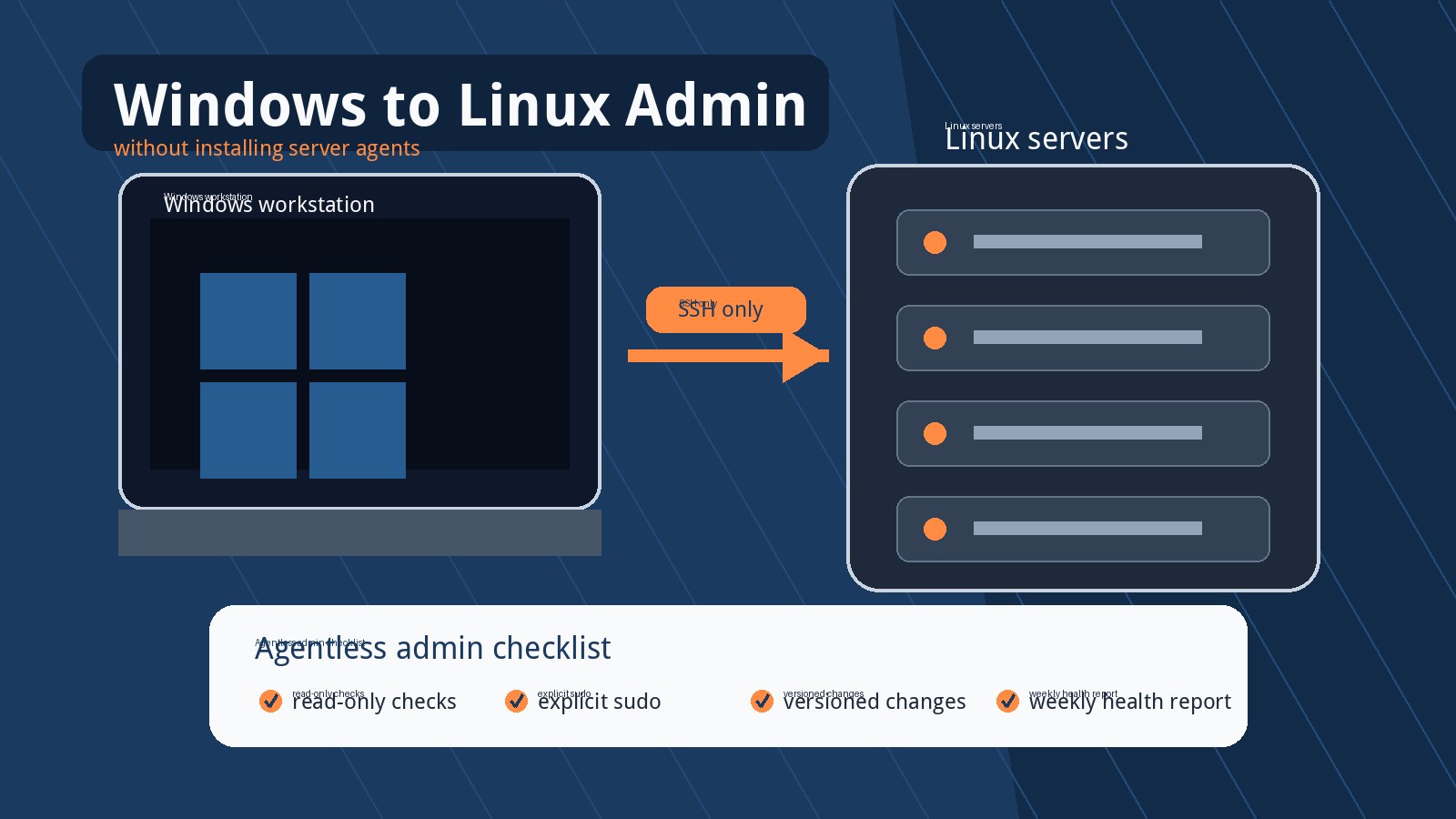
Managing Linux servers from a Windows workstation is normal now: OpenSSH ships with Windows, VS Code can edit over SSH, and most cloud consoles assume you will jump between tools. The harder question is not whether Windows can administer Linux; it is how much of that workflow should be combined into one tool without weakening production access. A good setup keeps SSH as the trust boundary, makes routine work faster, and still gives you reliable linux server monitoring without installing another daemon on every box.
This checklist is for developers, solo operators, and small business owners who manage Linux servers from a Windows laptop or desktop. It gives a practical way to compare separate tools against an agentless SSH-based GUI, and it calls out the operations that should stay deliberate rather than one-click.
1. Keep SSH as the primary security boundary
An agentless workflow is appealing because it uses the access model the server already trusts. That is a good starting point, but it only stays safe if SSH itself is configured like production infrastructure, not like a convenience tunnel.
- Use keys instead of passwords: password login should be disabled where possible, especially for Internet-facing servers.
- Protect private keys on Windows: use a passphrase, Windows Hello-backed storage where available, or a dedicated SSH agent with clear lifetime rules.
- Limit who can SSH: restrict users, groups, source networks, VPN paths, or cloud security groups instead of giving every admin broad shell access.
- Log access centrally: successful logins, failed attempts, sudo activity, and service changes should be visible after the fact.
If a GUI uses the same SSH account that a human uses, it inherits both the strengths and weaknesses of that account. Agentless does not mean risk-free; it means the risk is concentrated in SSH identity, permissions, and auditability.
2. Separate daily navigation from privileged actions
There is real value in a combined interface for routine work: opening files, checking service status, browsing logs, and copying paths are common low-friction tasks. The risk rises when the same interface makes destructive production changes feel too easy.
- Safe to streamline: directory browsing, SFTP transfers, read-only log viewing, service status checks, disk usage summaries, process lists, and package inventory.
- Use confirmation for changes: service restarts, config writes, package updates, firewall edits, cron changes, and deployment commands need explicit review.
- Keep rollback visible: before changing a config file, save or show the previous version and the command needed to revert.
- Prefer least-privilege commands: do not run the whole tool as root when only a few actions require sudo.
The goal is not to avoid GUIs. The goal is to make the GUI respect the same operational boundaries you would use at a terminal.
3. Choose where one tool helps and where separate tools are better
A single-pane workflow can reduce context switching, especially for small teams without a full operations platform. But some specialist tools are better kept separate because they provide stronger review, history, or collaboration.
- File management: SFTP in a GUI is useful for inspection and small transfers, but production configuration should usually live in Git or an auditable deployment process.
- Remote editing: direct edits are fast for emergencies; planned changes should go through pull requests, templates, or configuration management.
- Logs: a built-in log viewer is helpful for quick diagnosis, but long-term log search belongs in a real log pipeline if the business depends on it.
- Deployments: buttons can trigger known scripts, but the scripts should be versioned, repeatable, and capable of failing safely.
Use the combined tool for visibility and simple tasks. Use versioned workflows for changes that must be repeatable, reviewed, or handed to another person later.
4. Be careful with production operations a GUI should not hide
Some server actions are too consequential to compress into a friendly button without context. They can still be launched from a tool, but the tool should show exactly what will happen and make the operator acknowledge the risk.
- Firewall changes: blocking the wrong port or IP can lock out administrators or customers.
- Database restarts and migrations: these affect live users and need backups, maintenance windows, and rollback plans.
- Recursive deletes and ownership changes:
rm -rf, broadchown, and broadchmodoperations should never be casual UI actions. - Package upgrades: dependency changes can restart services or alter config defaults.
- Secret handling: copying environment files, private keys, and database credentials into a desktop tool should be minimized and logged carefully.
A production-safe interface should make dangerous work slower, not faster. Speed is useful for reading state; caution is useful for changing it.
5. Add monitoring without installing a heavy agent everywhere
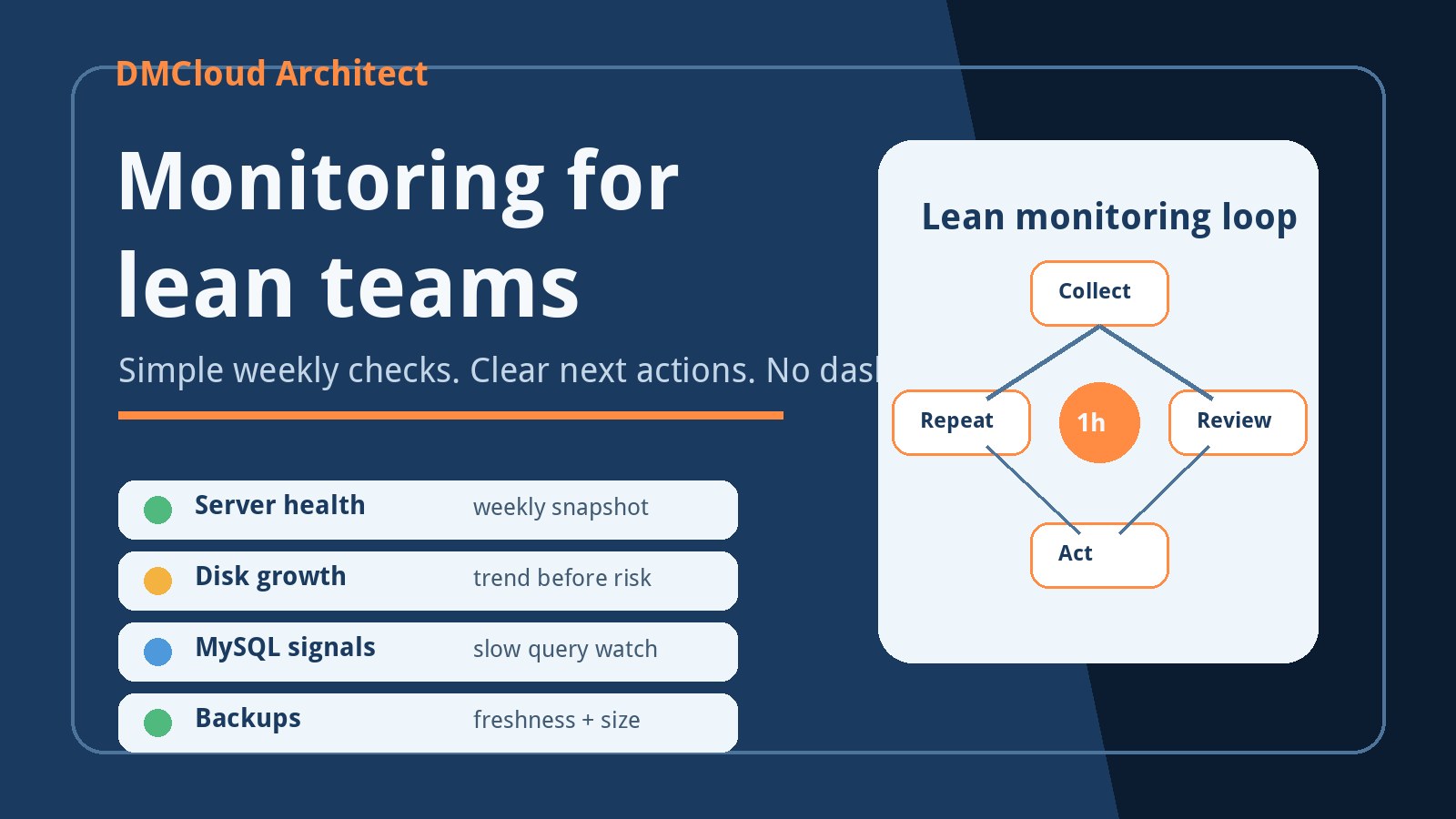
For many small businesses, the missing piece is not another real-time dashboard. It is a clear weekly view of whether the server is drifting into trouble. Agentless checks over SSH can cover a practical baseline when they are scoped and scheduled carefully.
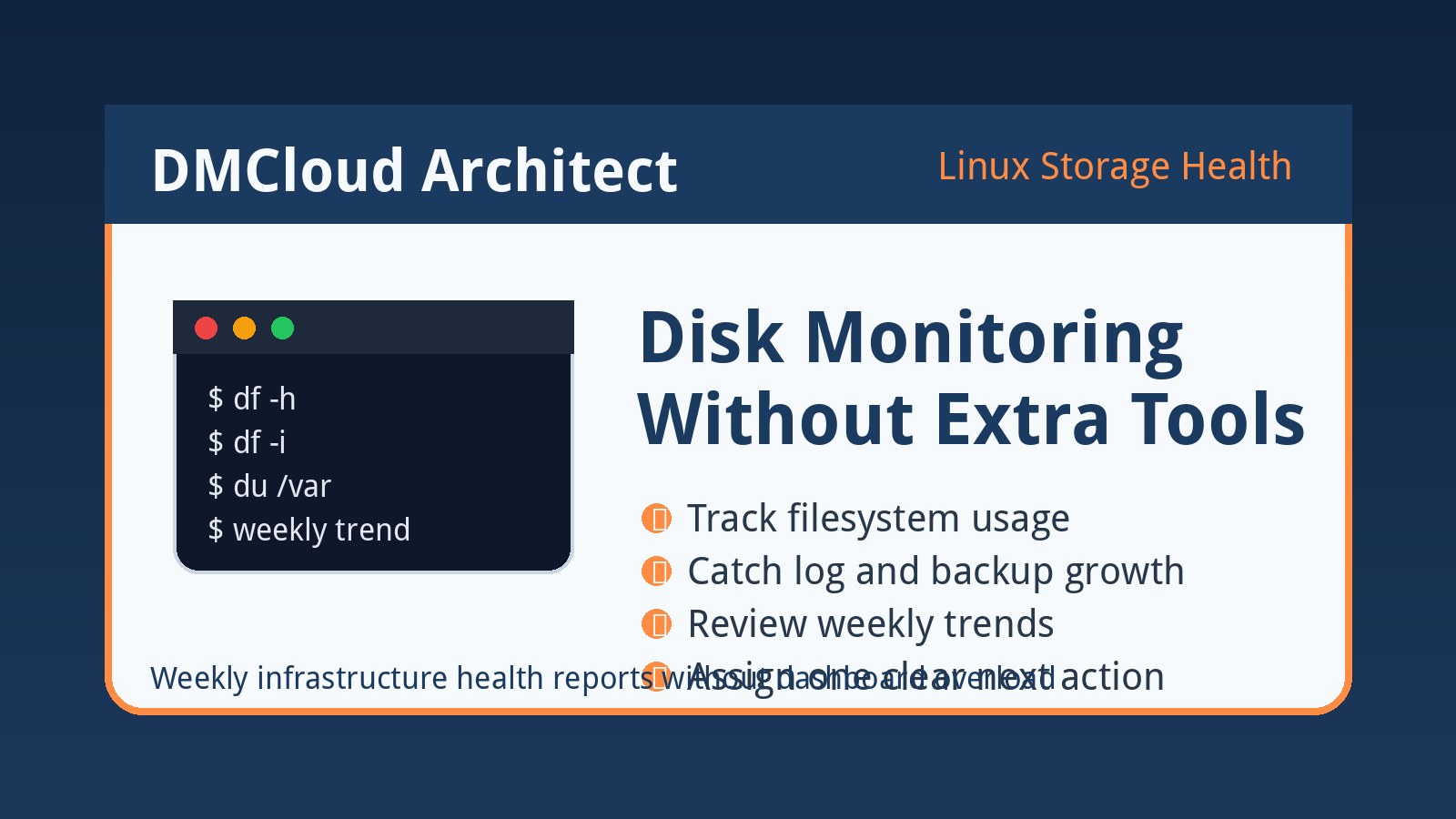
- System health: uptime, load average, CPU pressure, memory pressure, disk usage, inode usage, and swap activity.
- Service health: critical systemd services, recent restarts, failed units, and listening ports.
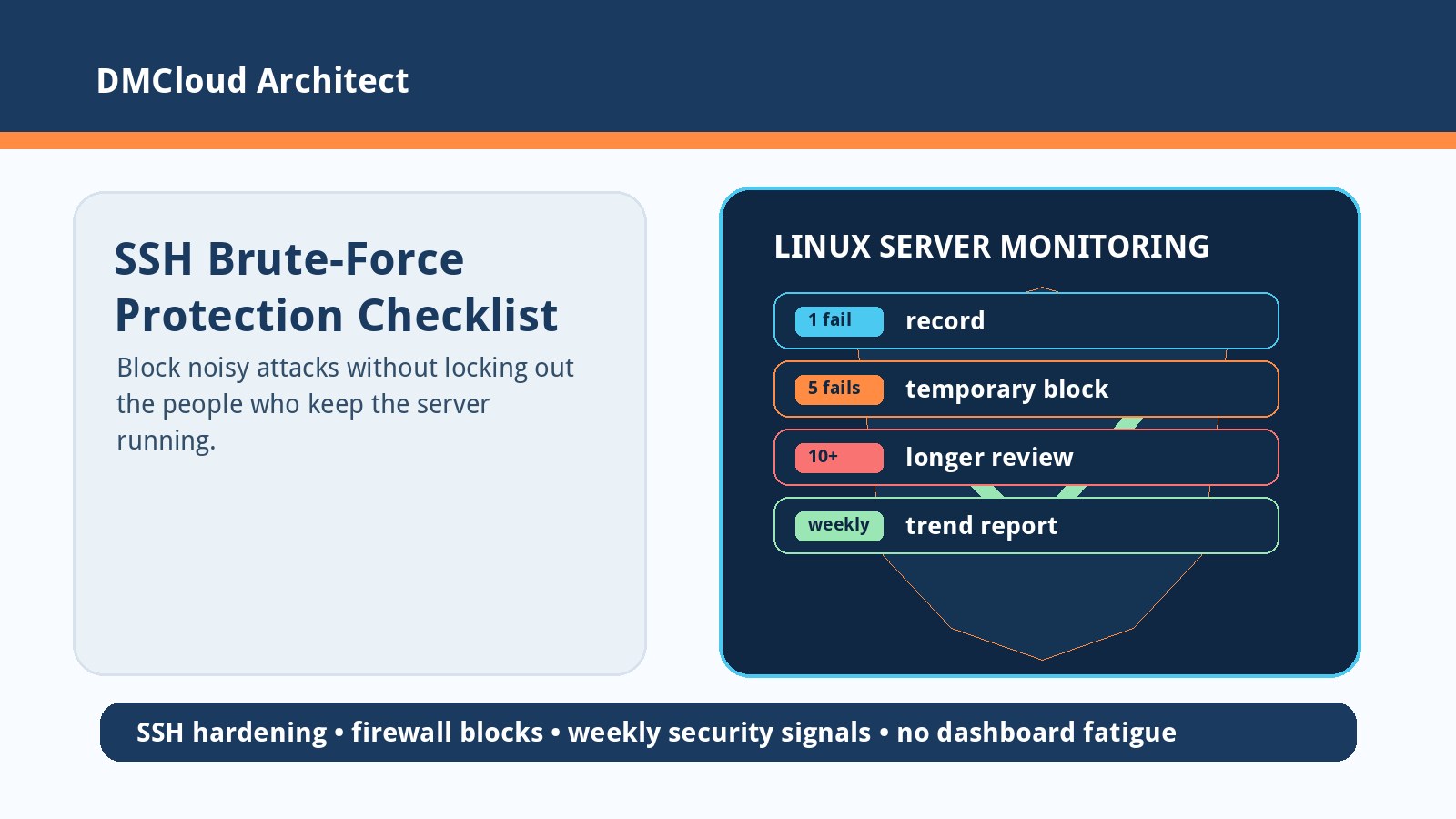
- Security posture: SSH failures, successful privileged logins, update status, firewall state, and exposed services.
- Database signals: MySQL uptime, connection pressure, slow queries, disk growth, backups, and replication status where relevant.
- Change visibility: package updates, config modification times, new users, and unexpected scheduled jobs.
This is where linux server monitoring can be lightweight and useful without becoming dashboard fatigue. A weekly report can summarize the important drift while leaving urgent alerts for conditions that genuinely need immediate action.
6. Design an agentless workflow that is auditable
If a desktop tool uses SSH to run commands, the audit trail matters. Operators should be able to answer what ran, who ran it, when it ran, on which host, and what changed.
- Show command previews: before execution, show the exact command or script path, not just a friendly label.
- Record outputs safely: save status, timestamps, exit codes, and non-secret output for later review.
- Separate read-only checks from writes: read-only health checks can be scheduled more freely than commands that modify state.
- Use named profiles: production, staging, and development hosts should not look identical in the UI.
- Require sudo intentionally: prompt for privileged actions and avoid persistent root sessions when possible.
Agentless administration is easiest to trust when it behaves like a transparent command runner with guardrails, not like a black box.
7. A practical Windows-to-Linux admin stack
A balanced setup does not need to be complicated. Start with boring, durable pieces and add a GUI only where it removes friction without hiding risk.
- Terminal: Windows Terminal with OpenSSH for direct commands and emergency access.
- Editor: a remote editor for planned config review, backed by Git where possible.
- Transfer: SFTP for inspection and small movement, not as the main deployment mechanism.
- Automation: CI/CD, Ansible, or versioned scripts for repeatable deployments and changes.
- Visibility: log review, service checks, and weekly health reports so small issues do not silently pile up.
A combined SSH-based GUI can fit into this stack if it improves visibility, keeps privileged operations explicit, and does not require a new server-side agent. The best workflow is the one that lets you move quickly during routine checks while still slowing you down before risky production changes.
Want weekly Linux health checks without dashboard fatigue?
DMCloud Architect sends weekly Linux and MySQL infrastructure health reports directly to your inbox, highlighting disk growth, load trends, service restarts, database pressure, SSH risk signals, and practical next steps.
Get the free starter plan for weekly infrastructure health reports.