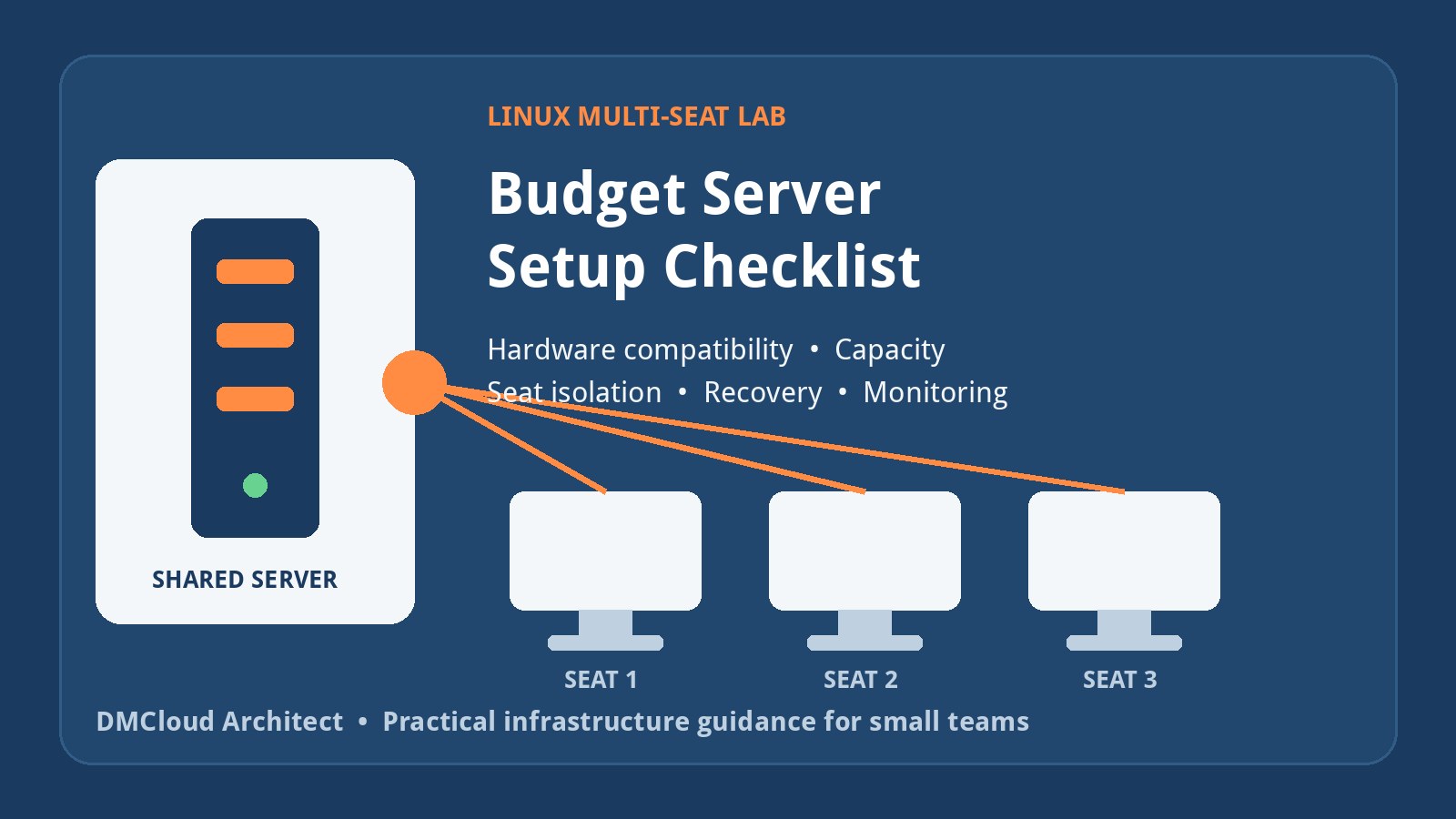
A Linux multi-seat lab lets several students use one physical computer at the same time. Each seat has its own monitor, keyboard, mouse, and desktop session while sharing the host's processors, memory, storage, and operating system. For a training startup with a tight equipment budget, that can reduce the number of complete computers to buy and maintain.
The savings are real only when the hardware, desktop stack, and workload fit together. Used server parts can also introduce compatibility problems, high electricity use, scarce replacement components, and one large failure domain. Use this checklist to validate the design before spending the full budget.
1. Define the class workload before choosing hardware
Start with the lessons students will run. Basic Linux command-line exercises, text editors, browser research, and lightweight programming are much easier to consolidate than Android emulators, multiple virtual machines, video editing, CAD, or local AI workloads. Write down the maximum number of simultaneous students and the heaviest normal exercise.
Create a per-seat estimate for memory, CPU, storage, and network use. A lightweight desktop and browser may fit comfortably in a few gigabytes of RAM, but modern browser tabs and development tools can grow quickly. Reserve capacity for the host, filesystem cache, updates, logging, and occasional peaks rather than dividing every available gigabyte among students.
- Seats: number required now and the likely class size next year.
- Applications: browser, office tools, IDE, containers, VMs, database, or graphics tools.
- Session storage: persistent home directories, disposable accounts, or centrally stored student work.
- Availability: whether one failed host can cancel the entire class.
- Power conditions: electricity cost, outages, heat, ventilation, and UPS runtime.
2. Verify the exact motherboard and memory combination
Do not buy an old Xeon processor, motherboard, and inexpensive DDR3 memory solely because the socket labels appear compatible. Xeon E5 v2 platforms vary by motherboard firmware, chipset, memory layout, and vendor restrictions. Many server boards are designed around ECC registered DIMMs, while some workstation boards support different memory types. Non-ECC DDR3 support must be confirmed in the exact motherboard manual and qualified-memory documentation.
Check the board revision, supported CPU list, required BIOS version, DIMM type, maximum capacity, channel population order, available PCIe slots, lane layout, USB controllers, storage interfaces, and onboard graphics behavior. Ask the seller for a boot test with the intended CPU and memory. If possible, run a memory test and inspect hardware errors before the return period ends.
sudo dmidecode -t system -t baseboard -t memory
lscpu
lspci -nn
lsusb -t
sudo journalctl -k -p warning..alert --no-pager
Older dual-socket hardware may look cheap but can draw much more power at idle than several efficient office PCs. Estimate total ownership cost using the measured wall-power figure, expected daily hours, local electricity price, UPS size, cooling needs, and the cost of a spare power supply or motherboard.
3. Plan one reliable display path per seat
True multi-seat needs a display output that Linux can assign reliably to each session. A single GPU with many connectors does not automatically behave like several independent seat devices. Multiple modest GPUs may be easier to map, but the motherboard must have the slots, PCIe lanes, spacing, airflow, power connectors, and firmware support to initialize them together.
Before buying several cards, test the proposed GPU model with the chosen Linux distribution and desktop. Confirm that all cards appear after a cold boot, the driver supports simultaneous sessions, suspend or screen blanking does not lose a seat, and displays return after an unexpected restart. Favor hardware supported by the distribution's normal kernel and packages; a fragile proprietary driver workaround is a poor foundation for a classroom.
4. Give each seat a distinct USB device path
Every student needs a keyboard and mouse that remain attached to the correct login session. A dedicated powered USB hub per seat can make the physical mapping clear, but separate hubs may still share one upstream controller. Inspect the USB topology and test device removal, reconnection, and reboot behavior.
loginctl list-seats
loginctl seat-status seat0
lsusb
lsusb -t
udevadm info --query=all --name=/dev/input/eventX
Linux commonly uses systemd-logind, udev tags, and the display manager to associate devices with seats. Distribution support and configuration details change, so build one complete two-seat prototype first. Label monitors, hubs, cables, and ports physically. A classroom should not depend on remembering which identical black cable belongs to which student.
5. Test the desktop and login manager as a complete stack
Multi-seat is not only a kernel feature. The display manager, desktop environment, graphics stack, audio routing, user permissions, and session services must cooperate. Test concurrent graphical logins, logout and login cycles, screen locking, audio devices, removable media, webcams if needed, and administrative actions that should be restricted.
Use ordinary student accounts without sudo access. Apply resource and process limits carefully so one mistaken program cannot consume all memory, fill the root filesystem, or create thousands of processes. Keep an administrator path that works even if every graphical seat is frozen, such as SSH from a separate management device or a dedicated local console.
6. Compare true multi-seat with thin clients
A multi-seat tower is not the only low-cost design. In a thin-client model, inexpensive used mini PCs or low-power terminals connect over the network to one server using remote desktop, browser-based labs, SSH, or a virtual desktop platform. This adds network and remote-session complexity, but each desk gets a simple independent display and USB endpoint.
Compare both approaches using local prices rather than assumptions:
- True multi-seat: fewer complete computers, but multiple GPUs, USB hubs, long cables, device assignment, and one central hardware failure.
- Thin clients: more small devices and network ports, but simpler desk wiring, easier seat replacement, and flexible server placement.
- Used office desktops: more systems to patch, but straightforward compatibility and failure isolation.
For command-line Linux training, low-cost client devices connecting to virtual machines or containers may provide better isolation than several students sharing one desktop host. For graphical classes, test latency and video quality before committing.
7. Design storage and student recovery before class starts
Separate the operating system from student data where practical. Set quotas on home directories and temporary storage. Decide whether each course starts from a clean image, whether students need persistent work, and how instructors recover accidentally deleted files. A full disk caused by one student can disrupt every seat.
df -hT
df -i
sudo du -xhd1 /home | sort -h
findmnt
systemctl --failed --no-pager
Back up course material, configuration, account-provisioning scripts, and any student work the business promises to retain. Then perform a restore test onto spare storage. A disk image is useful, but also document how to rebuild the host when the original motherboard or GPU model is unavailable.
8. Protect the lab from its single failure domain
When several seats share one host, a power supply, boot disk, motherboard, kernel update, or configuration error can stop the entire class. Keep at least one spare teaching device or a reduced-capacity fallback lesson. Stock the parts that are both likely to fail and difficult to source locally: compatible memory, storage, GPU, powered USB hub, and power supply where practical.
Use a UPS sized from measured load, not the power supply's advertised maximum. Configure a controlled shutdown and test it. Schedule updates outside teaching hours, keep the previous bootable kernel, and record a rollback procedure. Avoid making a major distribution, graphics-driver, or display-manager change immediately before a paid class.
9. Add Linux server monitoring that reflects classroom health
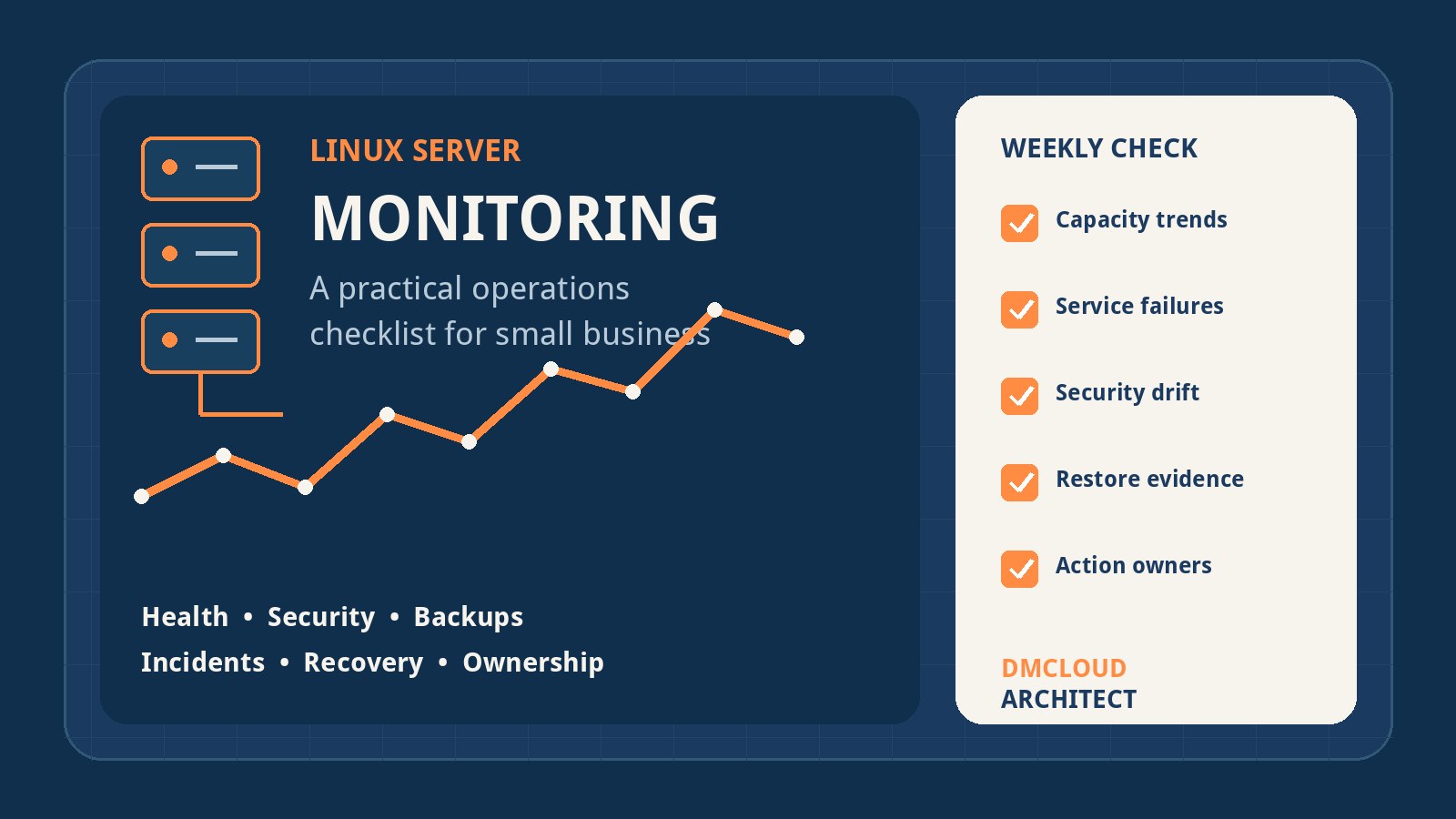
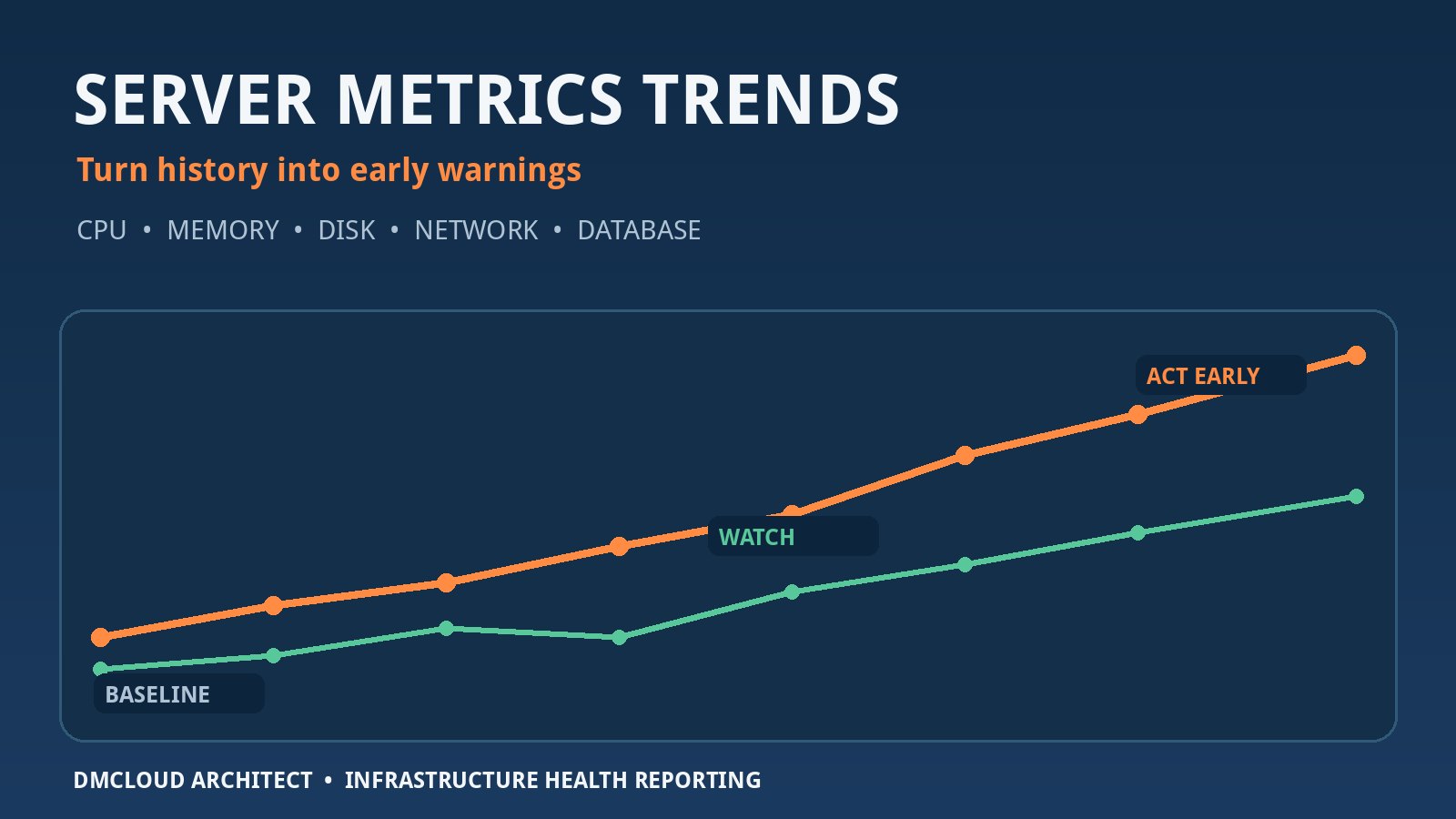
Useful Linux server monitoring for a multi-seat lab goes beyond CPU graphs. It should reveal whether every seat is usable, whether shared capacity is drifting toward a limit, and whether the system will be ready for the next class. Record a baseline with all seats running the normal lesson, then compare future checks with that known-good state.
- Expected GPUs, displays, USB hubs, keyboards, and mice are detected after boot.
- All required seats and graphical sessions can start.
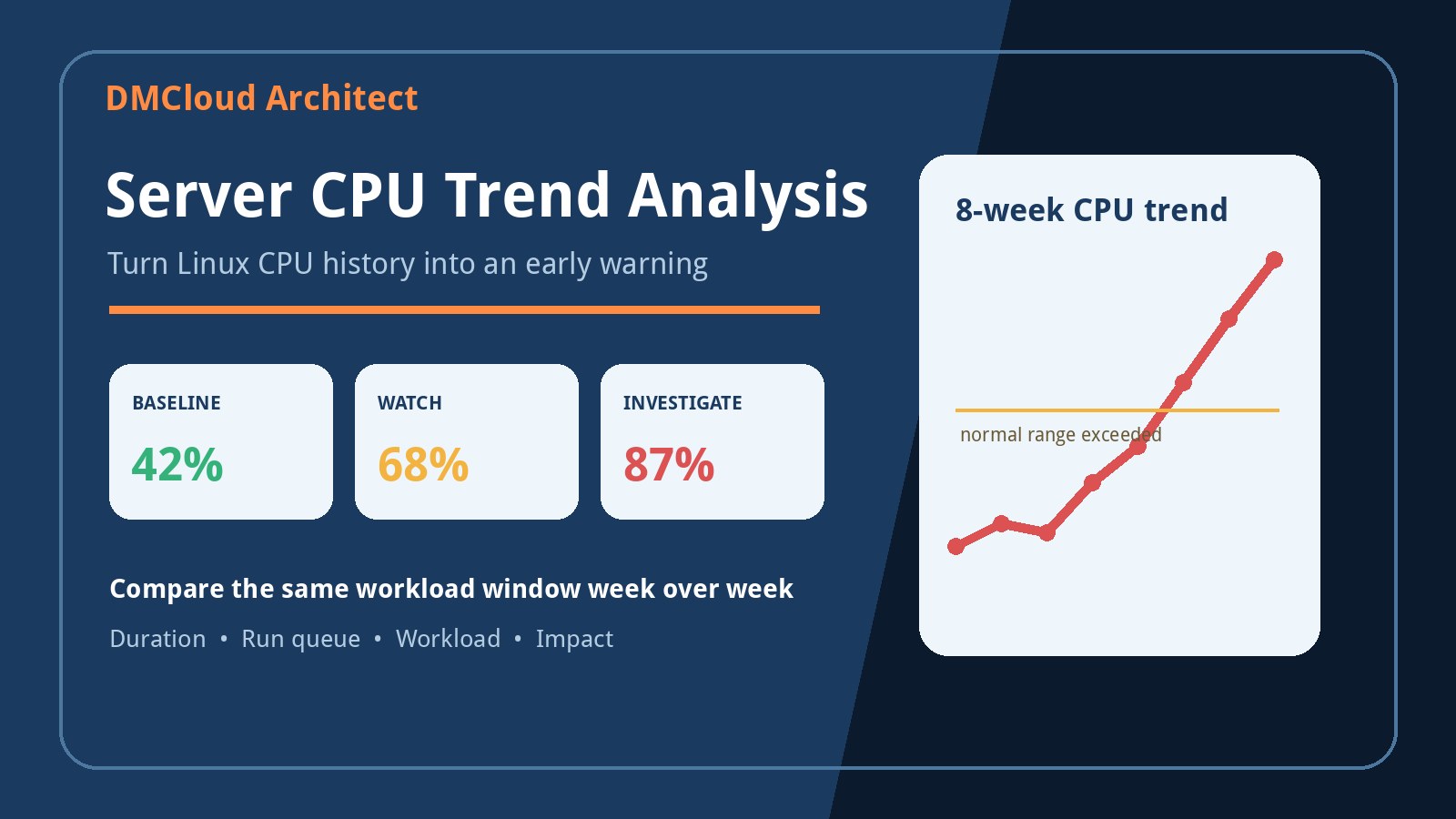
- Memory pressure, swap, load, disk latency, and temperature remain stable under a full class workload.
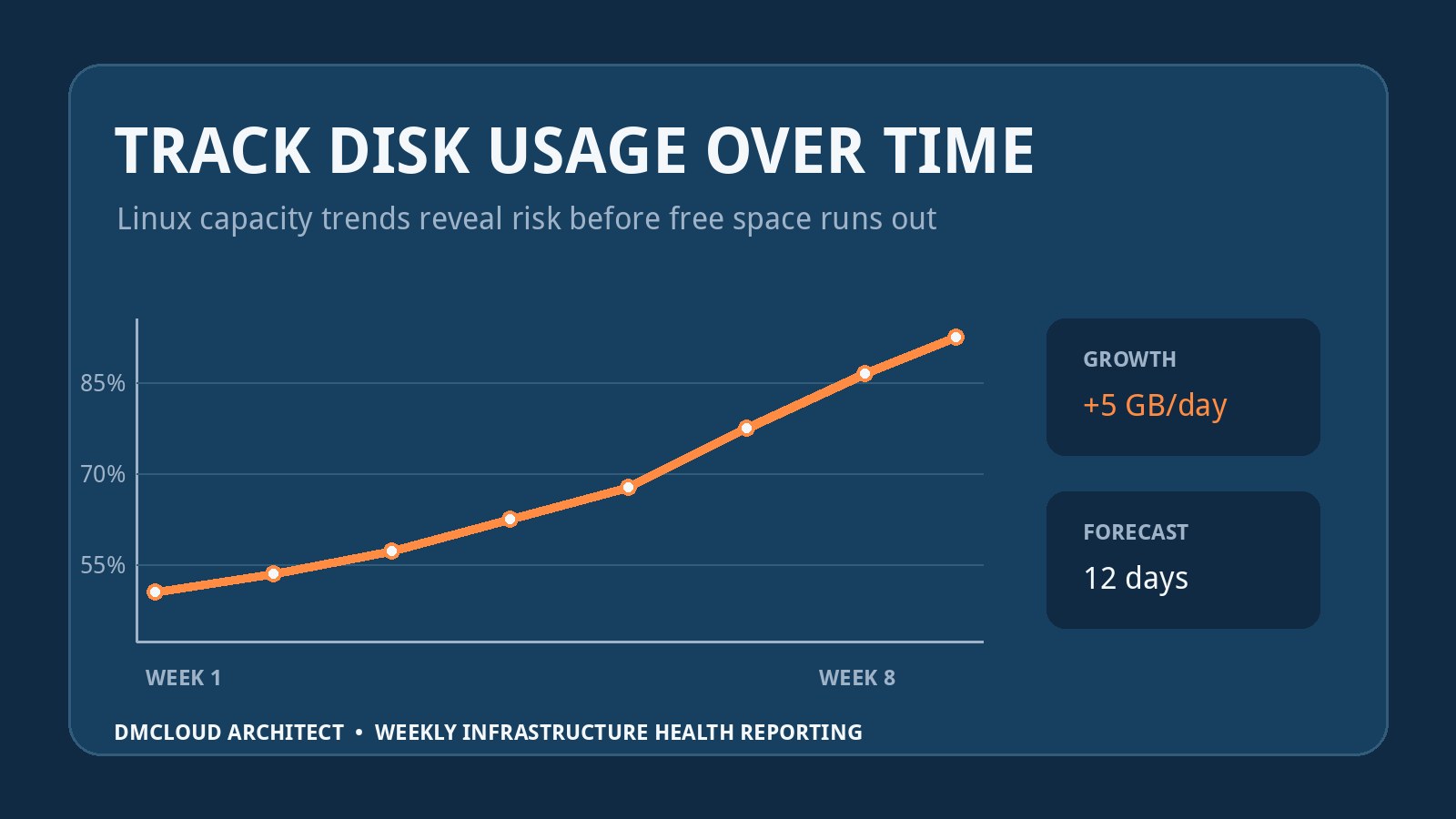
- Home-directory capacity, inode use, and log growth have enough runway.
- No failed systemd units, recurring kernel errors, GPU resets, or USB disconnect loops are present.
- Backups completed and the latest representative restore test is current.
- UPS health, disk health, network link, and remote administrator access are ready.
uptime
free -h
vmstat 1 5
sensors
journalctl -k --since "7 days ago" -p warning..alert
loginctl list-seats
systemctl --failed --no-pager
Real-time alerts should cover complete outages, storage exhaustion, severe temperature, and failed critical services. A weekly health report adds the trends that a classroom operator needs for budgeting: memory pressure rising as lessons change, disk runway shrinking, a GPU resetting more often, or a USB hub becoming unreliable. That evidence supports a planned replacement before students lose a session.
10. Build a small prototype and use a purchase gate
Do not buy hardware for every planned seat before proving the design. Assemble one host with two seats and run the actual course workload for several days. Reboot repeatedly, cold-start after power removal, log both users in and out, play media, compile code, reconnect USB devices, fill realistic home directories, apply normal updates, and simulate a failed application.
Expand only when the prototype passes these gates:
- The exact CPU, board, memory, GPUs, and USB topology are documented and repeatably detected.
- Every seat survives cold boots, session changes, and normal device reconnection.
- A full class workload stays within planned CPU, memory, storage, thermal, and power limits.
- Student accounts are isolated and cannot administer the host or disrupt other seats easily.
- Backups, restoration, remote administration, UPS shutdown, and rollback have been tested.
- The total cost includes displays, input devices, hubs, cabling, UPS, spare parts, electricity, and instructor time.
- A fallback exists if the shared server fails on a teaching day.
A budget Linux multi-seat lab can be a practical training platform, especially for lightweight coursework. The safest route is to treat it as an infrastructure project rather than a bargain-parts purchase: verify every component combination, prototype a small system, measure full-load behavior, and monitor the shared host as a classroom service.
Want weekly infrastructure checks without dashboard fatigue?
DMCloud Architect turns Linux and MySQL health signals into practical weekly reports, helping developers and small business owners spot capacity drift, hardware warnings, backup risk, and recurring failures before they disrupt work.
Get the free starter plan for weekly infrastructure health reports.