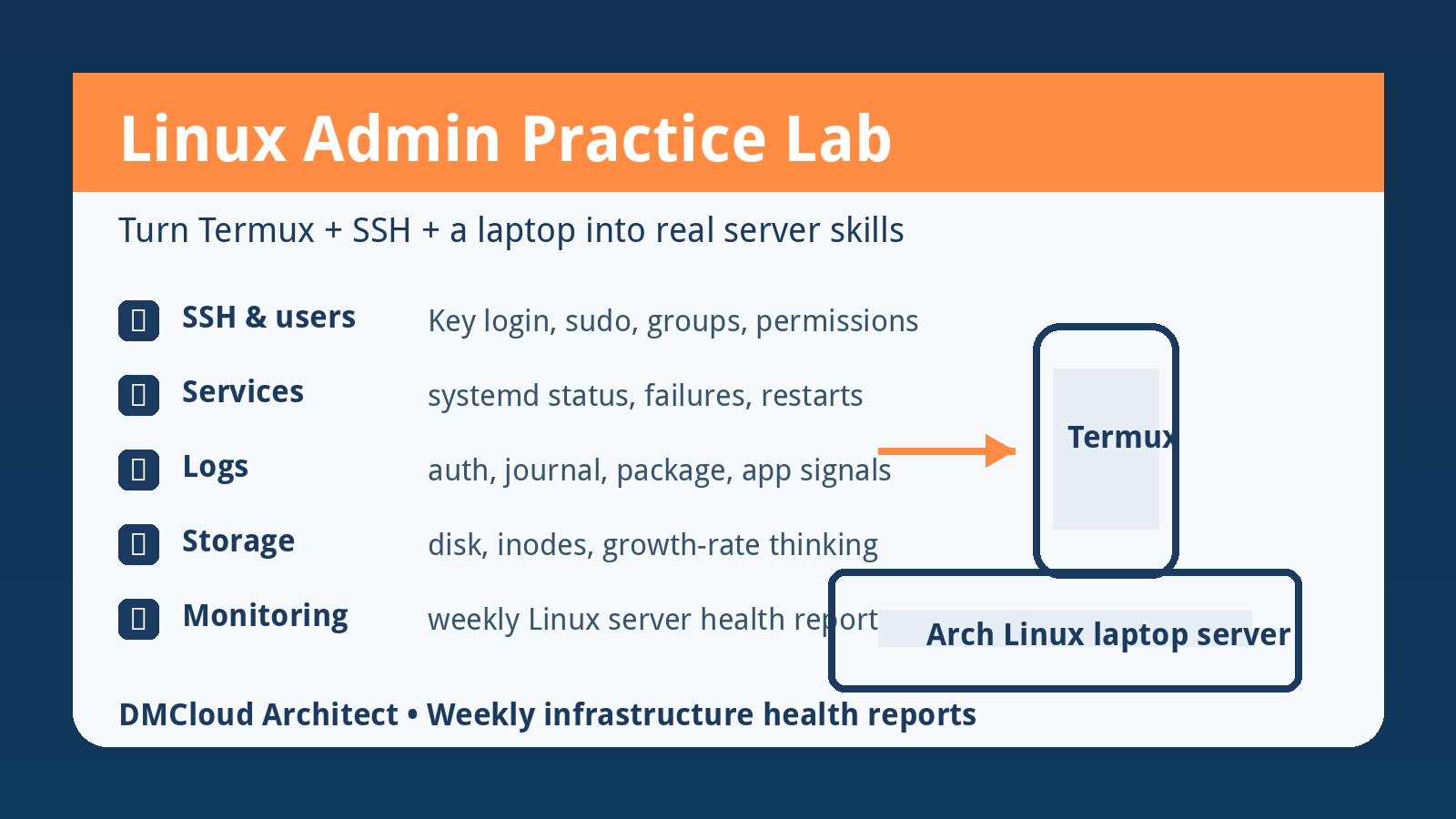
A small home lab is one of the best ways to learn Linux administration because it gives you real services, real mistakes, and real recovery practice without risking a production system. A phone running Termux, an SSH connection, and an Arch Linux laptop can teach more than a long list of theoretical commands if you give the lab clear operating goals.
The key is to stop treating the machine as only a shell prompt. Treat it as a small server with users, services, logs, storage, access controls, backups, and linux server monitoring signals that you review on a schedule.
Start with a safe lab contract
Write down what the lab is allowed to do and what it must not do. For example: it can run SSH, a test web service, a local database, scheduled jobs, and monitoring scripts, but it should not expose unsafe services to the public internet or store irreplaceable personal data.
This contract teaches a production habit early: every server has a purpose, an owner, an access path, and a recovery plan. Even a laptop under your desk benefits from that discipline.
1. Make SSH administration boring and repeatable
Practice connecting from Termux by hostname or fixed local IP, then move beyond "it works" into administration basics. Configure key-based login, document where the keys live, test a non-root admin user, and understand how to restart SSH without locking yourself out.
Useful drills include checking listening ports, reading sshd logs after a failed login, changing the SSH port only in the lab, and confirming that firewall rules still allow your intended management path.
2. Build user and permission exercises
Create a normal user, an admin user, and a service-style user. Practice group membership, file ownership, directory permissions, sudo rules, and the difference between making something writable for convenience and making it writable safely.
A strong lab task is to create a directory that one service can write, one admin group can inspect, and normal users cannot modify. That small exercise mirrors many real incidents caused by sloppy ownership and broad permissions.
3. Learn systemd through one simple service
Do not start by memorizing every systemd option. Create one tiny service: a static web server, a Python health endpoint, or a script that writes a timestamp to a log. Then practice starting, stopping, enabling, disabling, restarting, and reading status for that service.
After that, intentionally break it. Point it at a missing file, use a bad environment variable, or make it exit with an error. The goal is to learn how a failed service looks in status output and journal logs.
4. Add logs before adding dashboards
Logs are where new admins learn cause and effect. Review authentication logs, sudo activity, systemd journal entries, package manager logs, kernel messages, and application logs from your test service.
Keep a small incident notebook. Write what you changed, what broke, which log revealed the clue, and how you fixed it. That habit matters more than the specific distribution or tool you use.
5. Practice networking in layers
For each connection, ask four questions: does the service run, is it listening on the expected address and port, does the firewall allow it, and can the client reach it from the intended network? This prevents the common beginner mistake of treating every connection problem as an SSH problem.
Good drills include testing localhost versus LAN access, checking DNS or local hostnames, comparing ping with TCP reachability, and proving that a firewall deny rule actually blocks what you expect.
6. Turn disk and storage into a real operations topic
Disk practice should include more than the df command. Check filesystem usage, inode usage, large directories, log growth, package cache size, database or application data, and what happens when a filesystem approaches an alert threshold.
Create a safe test directory and fill it gradually so you can practice cleanup and growth-rate thinking. In real operations, "disk is 84% full" is less useful than "at the current growth rate, this server may cross 90% in two weeks."
7. Use cron or systemd timers for evidence collection
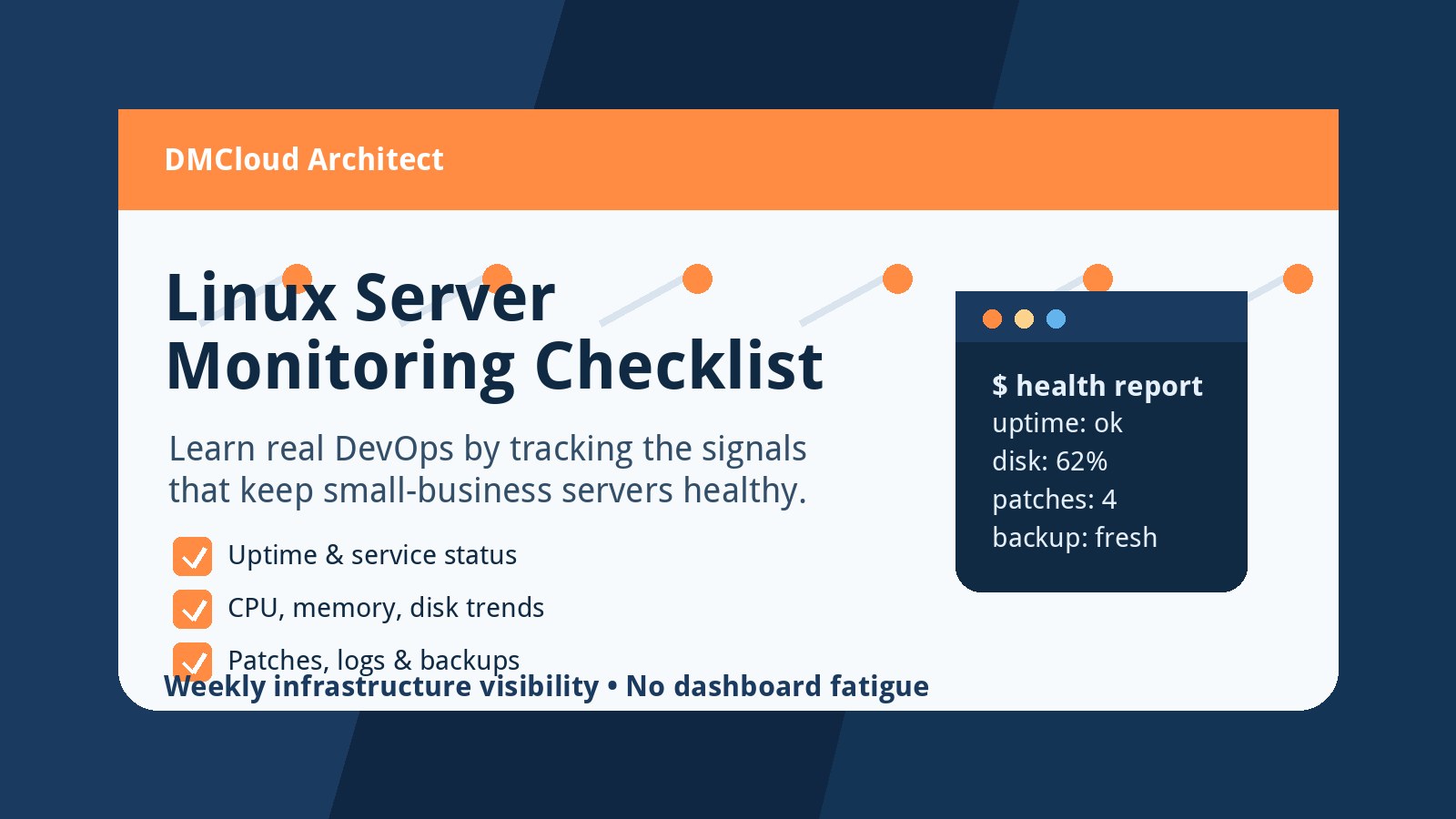
Add one scheduled job that records basic health information: uptime, load average, memory, disk, service status, failed login count, available updates, and last backup time. Save the output as a dated text or HTML report.
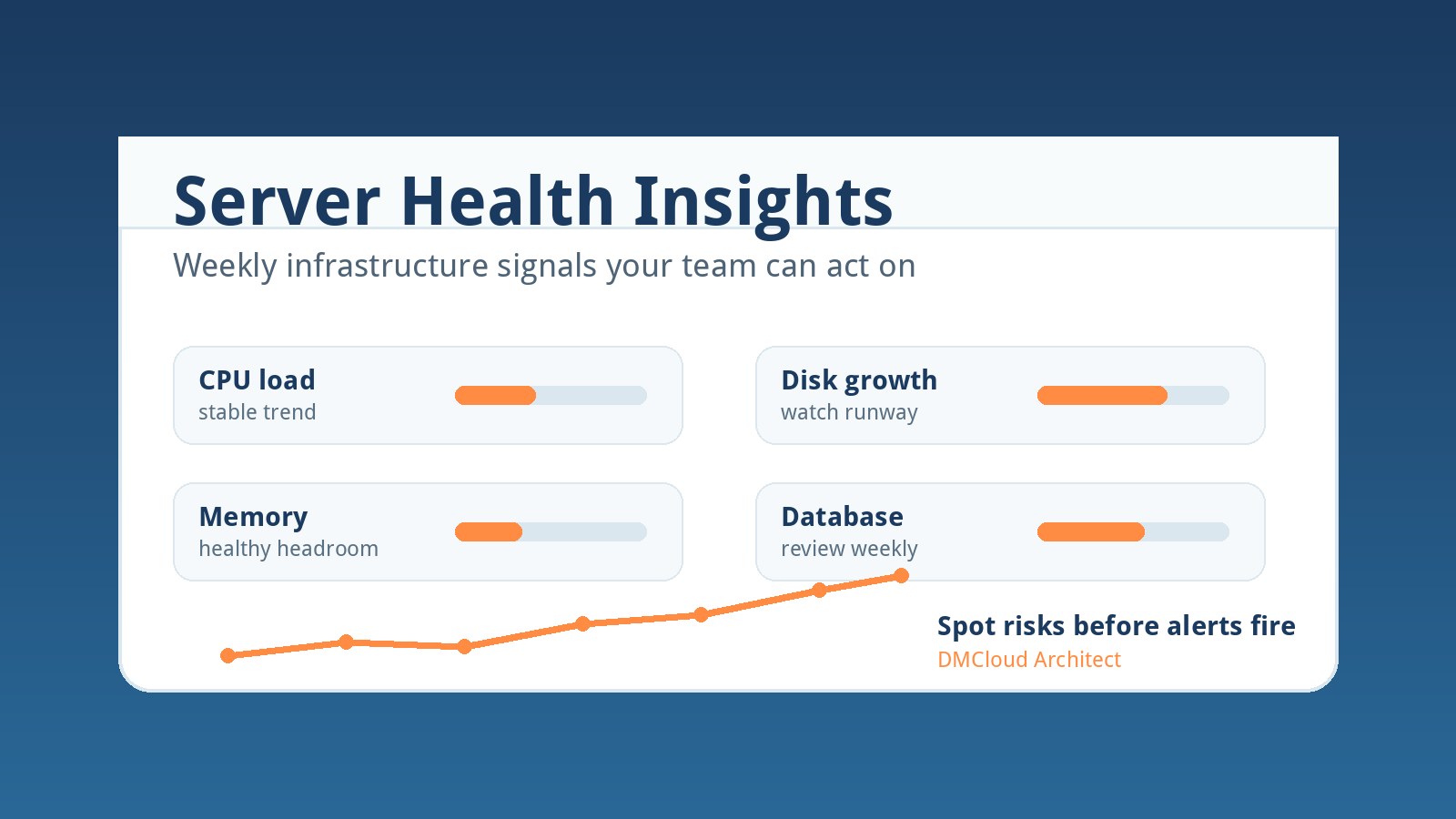
This is where linux server monitoring becomes practical. You are not trying to build a noisy enterprise dashboard. You are building the habit of collecting the same signals consistently and noticing drift.
8. Add hardening gradually and verify each change
Security practice is most useful when every hardening step has a verification step. Disable unnecessary services, review sudo membership, prefer SSH keys, keep packages updated, configure a firewall, and understand which logs show authentication activity.
Avoid copying hardening checklists blindly. In the lab, ask what risk a change reduces, how you can prove it works, and how you would recover if you locked yourself out.
9. Practice backups and restores early
Backups are a perfect beginner-to-intermediate admin topic because they touch permissions, storage, scheduling, logs, and recovery. Back up a test directory or small database, record where the backup lands, and verify that you can restore it into a different location.
Do not count a backup job as working until you have performed a restore. That mindset separates real administration from optimistic automation.
10. Build a troubleshooting ladder
When something breaks, move from broad to specific. Check whether the laptop is reachable, whether SSH works, whether the service is running, whether the port is listening, whether firewall rules changed, whether logs show errors, and whether disk or memory pressure is involved.
Write each troubleshooting session as a small runbook. Over time you will build a personal operations manual from real experiments instead of disconnected notes.
A practical weekly lab report
- Server identity, uptime, kernel version, and package update status.
- SSH access status, failed login summary, and sudo membership review.
- Expected services and whether each one is active, enabled, and reachable.
- CPU load, available memory, swap usage, disk usage, and inode usage.
- Important journal or application log changes since the previous report.
- Firewall rules and open listening ports compared with your intended baseline.
- Backup last-success time and one recent restore test result.
- One risk, one improvement, and one topic to practice next.
When weekly reports beat constant dashboards
Dashboards are useful, but beginners often learn more from a weekly report because the report forces interpretation. Instead of staring at live numbers, you decide what changed, what matters, and what action should happen next.
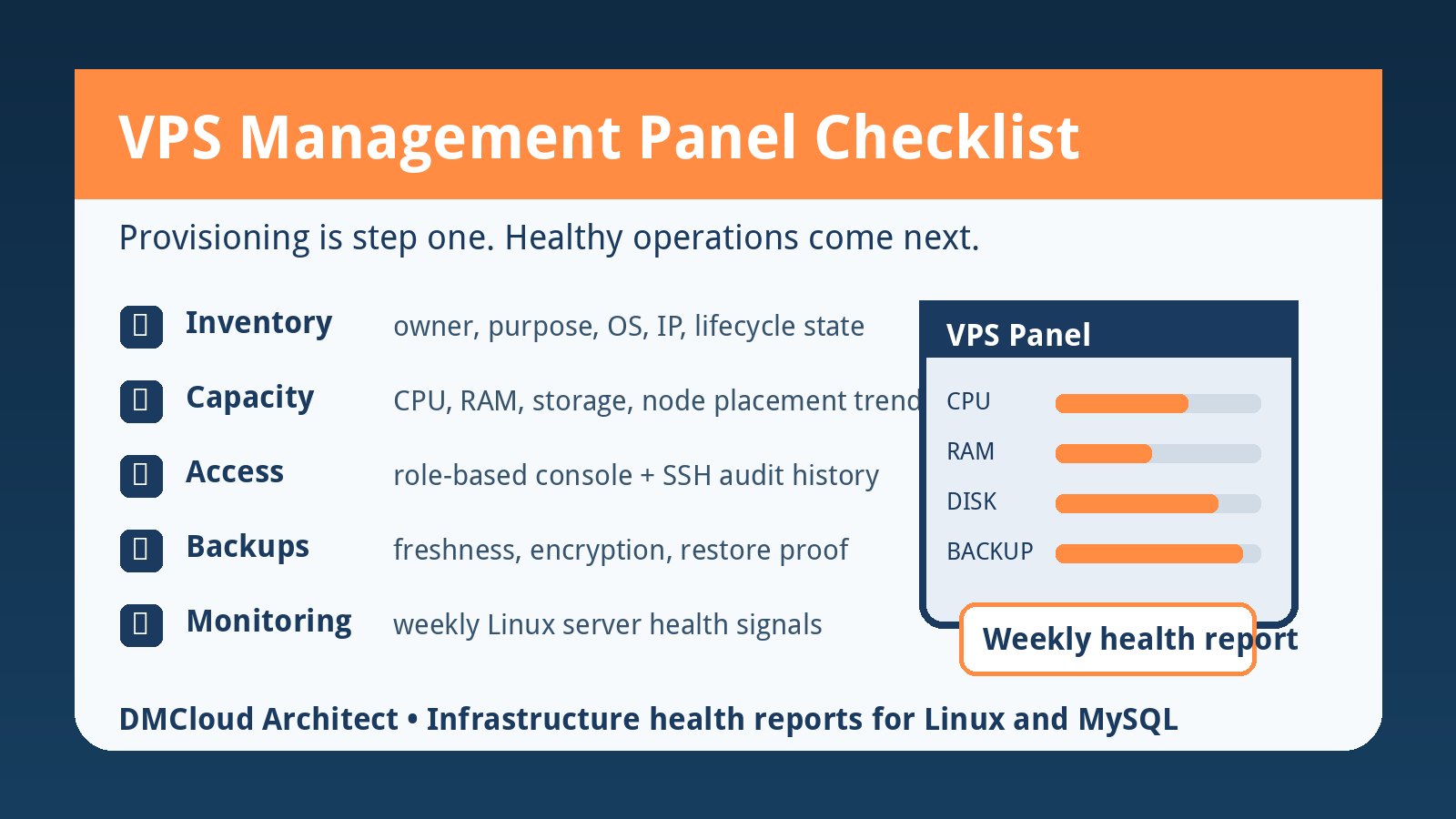
That is also how many small business owners prefer infrastructure visibility. They do not need another screen to watch; they need a clear summary of capacity, patching, backups, service health, and risks before those issues become outages.
What to practice next
Start with SSH, users, one service, logs, disk, firewall rules, and a scheduled health report. Once that feels comfortable, add a small web app, a database, automated backups, certificate checks, and a documented incident drill.
If your lab can tell you what is running, who can access it, what changed, whether backups work, and which risk deserves attention next, you are learning real Linux administration.
Want weekly infrastructure health checks without dashboard fatigue?
DMCloud Architect sends Linux and MySQL infrastructure health reports directly to your inbox, so you can spot risks early without adding another monitoring dashboard to watch.
Get the free starter plan for weekly infrastructure health reports.