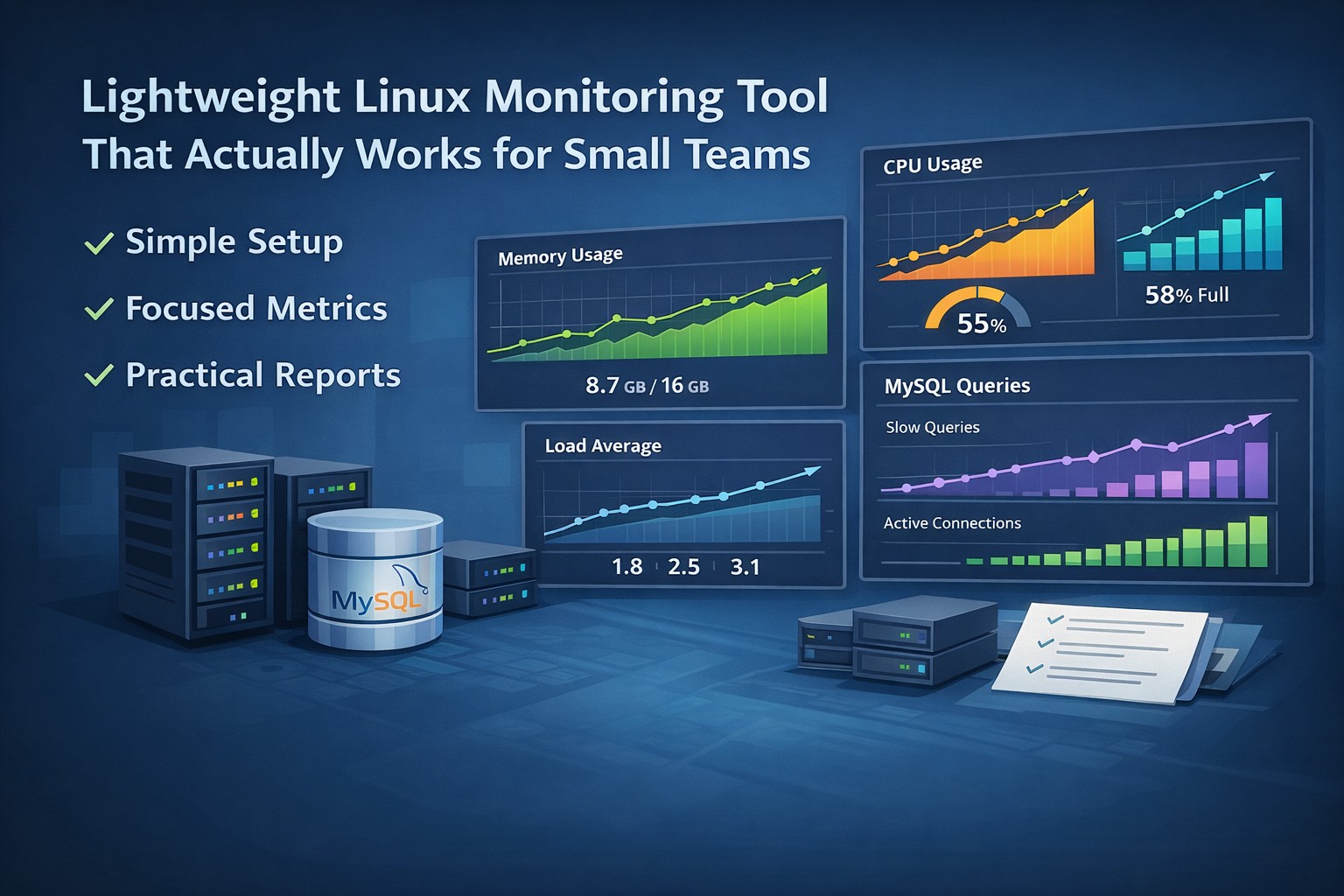
How to Monitor Disk Usage in Linux (Step-by-Step Guide)
Disk space issues are one of the most common causes of outages in Linux environments. The problem is not usually a sudden spike—it’s slow, unnoticed growth over time.
If you don’t actively monitor disk usage, logs, databases, and backups can quietly consume storage until systems reach critical levels. This guide shows you how to monitor disk usage in Linux using practical commands, simple scripts, and automation.
Why Monitoring Disk Usage Matters
Most teams rely on basic alerts when disks are almost full. But by that point, your options are limited and urgent.
Monitoring disk usage gives you:
- Early visibility into storage growth
- Time to plan capacity upgrades
- Insight into abnormal usage patterns
This is especially important for small teams managing multiple servers without dedicated monitoring staff.
Step 1: Check Disk Usage with Built-in Commands
Linux provides simple commands to check disk usage instantly.
Use df for Filesystem Overview
df -hThis command shows disk usage across all mounted filesystems in a human-readable format.
Use du for Directory-Level Analysis
du -sh /var/logThis helps identify which directories are consuming the most space.
These commands are essential, but they only give you a snapshot—not a trend.
Step 2: Create a Simple Disk Monitoring Script
To track disk usage over time, you need to collect data regularly. A simple bash script can do this.
#!/bin/bash
DATE=$(date +"%Y-%m-%d %H:%M:%S")
df -h | grep '^/dev/' >> /var/log/disk-usage-history.log
echo "Checked at $DATE" >> /var/log/disk-usage-history.log
This creates a disk usage history in Linux that you can review later.
Step 3: Automate with Cron
Automation ensures consistent data collection.
Edit your crontab:
crontab -eAdd a job to run every hour:
0 * * * * /path/to/disk-monitor.shThis approach enables continuous disk monitoring in Linux without manual effort.
Step 4: Analyze Disk Usage Over Time
Once you collect data, patterns begin to emerge.
Look for:
- Steady growth trends
- Sudden spikes after deployments
- Unexpected increases in specific partitions
This is where tracking disk space usage over time on your server becomes valuable for decision-making.
Real-World Example
A Linux server running MySQL shows stable usage at 70%. No alerts are triggered.
However, after tracking disk usage history, the team notices a weekly increase of 3%. Investigation reveals slow-growing binary logs that were never cleaned up.
By identifying the issue early, they:
- Implement proper log rotation
- Prevent disk exhaustion
- Avoid emergency downtime
Common Mistakes to Avoid
- Only checking disk usage manually
- Not storing historical data
- Ignoring small but consistent growth
- Relying solely on critical alerts
Effective monitoring is about consistency and visibility, not just tools.
Summary
Learning how to monitor disk usage in Linux is not just about running commands—it’s about building a system that tracks growth over time. With simple scripts and cron jobs, you can gain valuable insights into your infrastructure without adding complexity.
If you want to go beyond scripts and get clear weekly insights into disk growth, CPU usage, and database trends, explore Infrastructure Health Reporting. It provides practical visibility designed for small teams managing real-world systems.